Umbraco.Community.uAccessible
1.0.4
See the version list below for details.
dotnet add package Umbraco.Community.uAccessible --version 1.0.4
NuGet\Install-Package Umbraco.Community.uAccessible -Version 1.0.4
<PackageReference Include="Umbraco.Community.uAccessible" Version="1.0.4" />
<PackageVersion Include="Umbraco.Community.uAccessible" Version="1.0.4" />
<PackageReference Include="Umbraco.Community.uAccessible" />
paket add Umbraco.Community.uAccessible --version 1.0.4
#r "nuget: Umbraco.Community.uAccessible, 1.0.4"
#:package Umbraco.Community.uAccessible@1.0.4
#addin nuget:?package=Umbraco.Community.uAccessible&version=1.0.4
#tool nuget:?package=Umbraco.Community.uAccessible&version=1.0.4
uAccessible


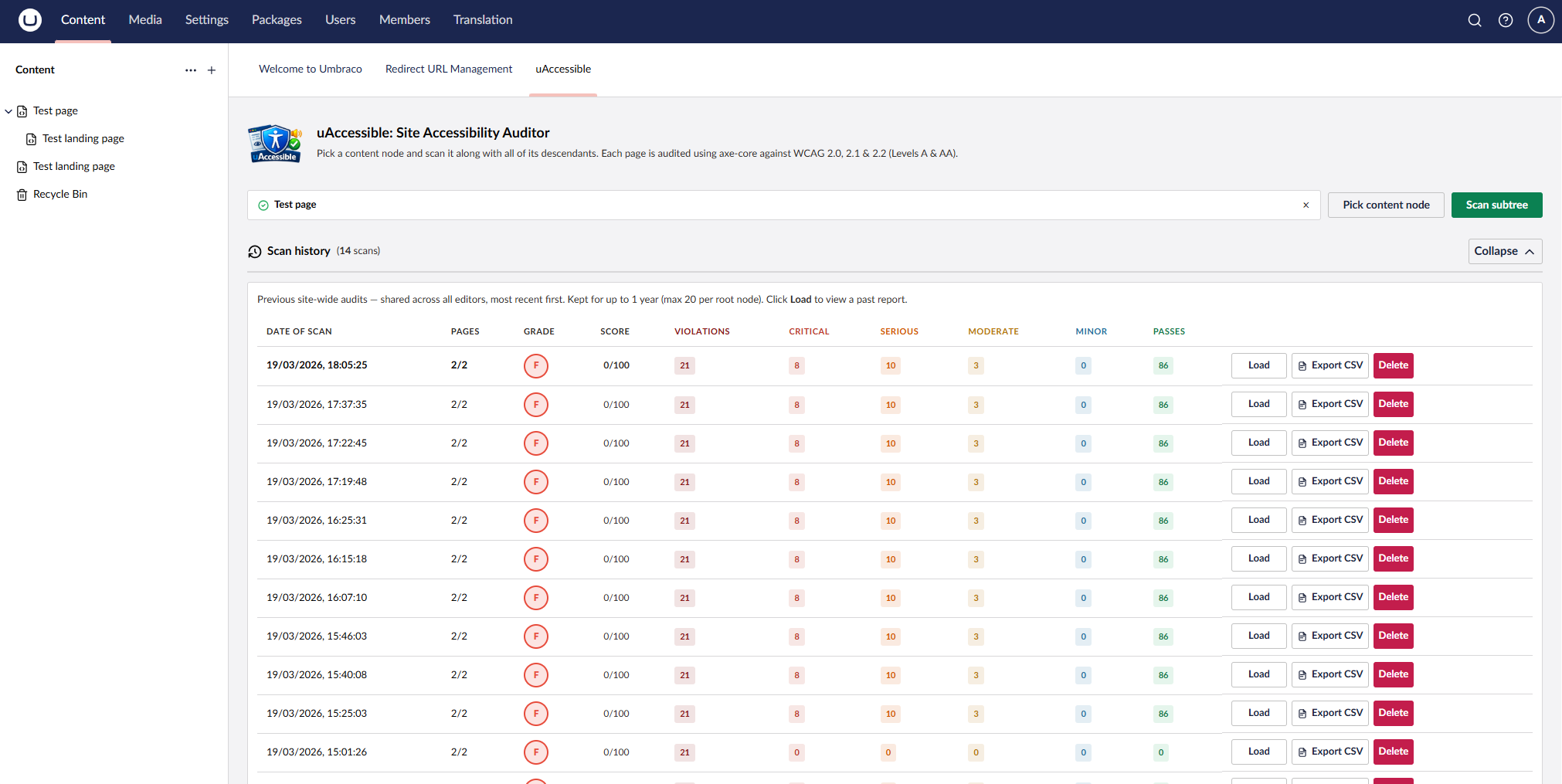
Accessibility audit reports for your Umbraco content pages — directly inside the backoffice.
uAccessible adds an Accessibility tab to every content node workspace. Clicking it launches a headless Chromium browser, runs a full axe-core audit against the last published version of the page, and returns a graded report with violations, remediation guidance, WCAG success criteria, and affected HTML elements — without leaving the backoffice.
Features
- Accessibility workspace tab — audit the page you're editing without leaving the content node
- A–F accessibility grade — at-a-glance score based on violation count and severity
- Violations — each failing rule shown with impact level (Critical / Serious / Moderate / Minor), WCAG success criteria tags, affected HTML elements with CSS selectors, failure reasons colour-coded by severity, and a direct link to the axe-core remediation guide
- Quick wins panel — surfaces the lowest-effort, highest-impact fixes first
- Needs manual review — items axe-core could not fully determine automatically, requiring human judgement
- Passing checks — collapsible section showing all rules that passed, with the specific criteria each element satisfied and CSS selectors for every checked element
- Collapse / expand controls — collapse all cards at once or toggle individual sections (Violations, Needs manual review, Passing checks) independently
- WCAG 2.0 / 2.1 / 2.2 coverage — Levels A and AA, powered by axe-core
What it doesn't do
uAccessible is an automated scanning tool. It is not a substitute for a full accessibility audit.
- Does not audit unpublished pages — the page must have a published URL reachable from the server
- Does not run scheduled or background scans — audits are on-demand only, triggered from the backoffice tab
- Does not fix issues — it identifies and explains problems; remediation is done by your developers
- Does not catch every accessibility issue — axe-core detects roughly 30–57% of WCAG issues automatically; keyboard navigation, screen reader compatibility, cognitive accessibility, and many focus-management issues require human testing
- Does not audit authenticated pages — pages behind a login or bot-protection (e.g. Cloudflare) cannot be reached by the headless browser
- Does not guarantee WCAG compliance — a clean report means no automatically detectable violations were found, not that the page is fully conformant
- Does not test across multiple browsers — scans run in Chromium only
Requirements
- Umbraco 17+
- .NET 10+
- PowerShell (for Playwright browser install — included with Windows; available via
brew install powershellon macOS/Linux)
Installation
1. Add the NuGet package
dotnet add package Umbraco.Community.uAccessible
2. Install the Chromium browser (one-time per server)
uAccessible uses Microsoft Playwright to drive a headless browser for each scan. After your first build, run:
Windows / PowerShell:
pwsh bin/Debug/net10.0/playwright.ps1 install chromium
Linux (Ubuntu/Debian — installs OS dependencies too):
pwsh bin/Debug/net10.0/playwright.ps1 install --with-deps chromium
macOS:
pwsh bin/Debug/net10.0/playwright.ps1 install chromium
For a Release build, substitute Debug with Release in the path above.
3. Done
No appsettings.json changes or additional configuration required. Restart your site and the Accessibility tab will appear on every content node.
CI/CD & production deployments
Add the Chromium install step to your pipeline so it runs once after each new deployment:
GitHub Actions:
- name: Install Chromium for uAccessible
  run: pwsh $DOTNET_ROOT/tools/playwright.ps1 install --with-deps chromium
Azure DevOps:
- script: pwsh $(Agent.ToolsDirectory)/playwright.ps1 install --with-deps chromium
  displayName: Install Chromium for uAccessible
Note: Playwright spins up a real Chromium process for each scan. Ensure your production server has sufficient memory headroom (typically 512 MB+). On Linux,
--with-depsinstalls the required system libraries automatically.
How it works
- You open a content node in the Umbraco backoffice and click the Accessibility tab.
- uAccessible resolves the node's published URL via Umbraco's URL provider.
- A headless Chromium browser loads the live published page and runs an axe-core audit.
- Results are returned immediately as a structured report — no background jobs or scheduled tasks involved.
Source & Issues
| Product | Versions Compatible and additional computed target framework versions. |
|---|---|
| .NET | net10.0 is compatible. net10.0-android was computed. net10.0-browser was computed. net10.0-ios was computed. net10.0-maccatalyst was computed. net10.0-macos was computed. net10.0-tvos was computed. net10.0-windows was computed. |
-
net10.0
- Deque.AxeCore.Playwright (>= 4.11.1)
- Microsoft.Playwright (>= 1.58.0)
- Umbraco.Cms.Api.Common (>= 17.0.0)
- Umbraco.Cms.Api.Management (>= 17.0.0)
- Umbraco.Cms.Web.Common (>= 17.0.0)
- Umbraco.Cms.Web.Website (>= 17.0.0)
NuGet packages
This package is not used by any NuGet packages.
GitHub repositories
This package is not used by any popular GitHub repositories.