Umbraco.Community.AdvancedPermissions
18.1.0
See the version list below for details.
dotnet add package Umbraco.Community.AdvancedPermissions --version 18.1.0
NuGet\Install-Package Umbraco.Community.AdvancedPermissions -Version 18.1.0
<PackageReference Include="Umbraco.Community.AdvancedPermissions" Version="18.1.0" />
<PackageVersion Include="Umbraco.Community.AdvancedPermissions" Version="18.1.0" />
<PackageReference Include="Umbraco.Community.AdvancedPermissions" />
paket add Umbraco.Community.AdvancedPermissions --version 18.1.0
#r "nuget: Umbraco.Community.AdvancedPermissions, 18.1.0"
#:package Umbraco.Community.AdvancedPermissions@18.1.0
#addin nuget:?package=Umbraco.Community.AdvancedPermissions&version=18.1.0
#tool nuget:?package=Umbraco.Community.AdvancedPermissions&version=18.1.0

Advanced Permissions for Umbraco
Fine-grained, explicit permission management for Umbraco user groups. Decide exactly who can do what, and where — across content, document types, and the Library.


Features
Umbraco's built-in permissions cover the everyday cases well: you grant a user group a set of permissions, optionally override them per node, and those overrides inherit down the content tree. Advanced Permissions builds on that same model and adds finer-grained control for the situations that call for it. That control spans your content tree, document-type creation, and — new in v18 — Umbraco's Library. Here is what it adds on top of the defaults.
Override one permission, inherit the rest. This is the big one. In Umbraco, the permissions you set on a node are all-or-nothing: they replace everything that node would otherwise inherit, so to change a single permission you have to restate every other permission you want to keep. Advanced Permissions treats each permission independently, so you can change just the one you care about on a node and let the others keep inheriting from above. You override exactly what you need and leave the rest untouched.
Say "no", not just "yes". Built-in permissions are additive: you grant what a group may do. Advanced Permissions adds an explicit Deny, so you can actively revoke a permission, including one that was inherited from an ancestor.
Decide how far a rule reaches. Every entry carries a scope: this node only, this node and its descendants, or descendants only. That means you can express patterns like "lock the branch root, but leave everything beneath it open" in a single entry.
Set a rule for everyone at once. The All Users Group is a baseline that reaches every backoffice user, whatever groups they belong to. Pair it with a Deny and you can lock a critical node down across the board with one entry.
Decide which group wins, on purpose. When a user belongs to several groups, those groups can disagree, and the normal priority order does not always land where you want. Priority Override is the deliberate escape hatch: flag the entry that should win, and it does, with no group restructuring required.
Control what can be created, and where. Beyond Umbraco's static "allowed child types", you can decide per group which document types may be created at which nodes. The package filters the insert options users actually see, so editors only get the choices they are meant to have.
Reach beyond the content tree, into the Library. The same model applies to Umbraco's Library of reusable items. Manage, per group, what each may do to library folders and items — with the same Allow/Deny, scope, inheritance, and reasoning — and control which element types a group may create there.
See exactly why a permission resolved the way it did. The Access Viewer shows the effective permission for any user or group at any node, with a full reasoning chain: which group contributed, from which node, and whether it was explicit or inherited. Every result is fully explainable.
Start exactly where you already are. On first boot the package imports your existing user-group permissions, and seeds new groups automatically afterwards. Day one matches what you had before, so there is nothing to reconfigure by hand.
Prerequisites
- Umbraco v18.0.0 or later
- .NET 10
Installation
dotnet add package Umbraco.Community.AdvancedPermissions
The package auto-registers, so there is no setup code to write. On first boot it imports the permissions from your existing user groups, so your current security setup carries over automatically (see First-time import below).
After installation, the Users section of the backoffice gains four new menu groups in the sidebar, one per domain. Each group holds a Permissions Editor (to set the rules) and an Access Viewer (to audit them):
- Content Permissions — manage and audit permissions across the content tree.
- Document Type Permissions — control and audit which document types each group can create, and where.
- Library Permissions — manage and audit permissions across the Library tree.
- Library Element Type Permissions — control and audit which element types each group can create in the Library.
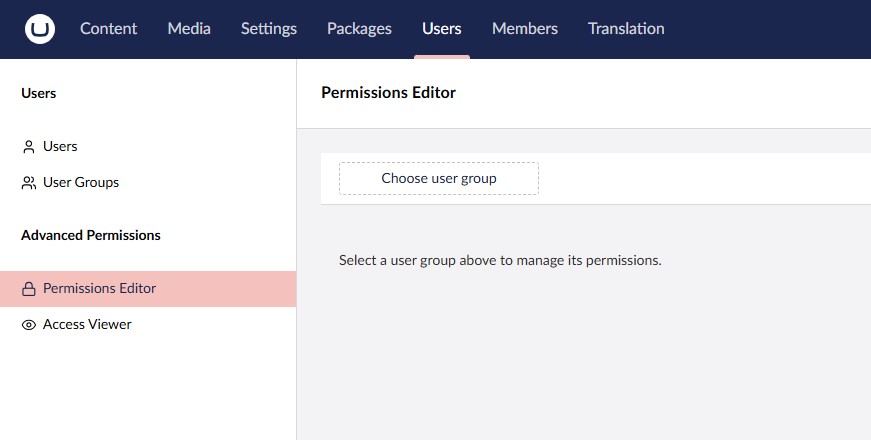
You still create and manage your user groups in Umbraco exactly as you do today. The only change is where permissions are edited. In each user group's editor, the native Documents permissions panel is replaced with a short message pointing you to the Content Permissions Editor, and the native Library element permissions panel is likewise replaced with a pointer to the Library Permissions Editor — that editing now lives in those dedicated screens.

No further configuration is required. The package works out of the box, using the same set of permissions as Umbraco itself.
How It Works
First-time import
The first time the package boots, it imports the permissions from your existing user groups so nothing has to be set up from scratch:
- User Group-level defaults become entries on the Default permissions row (the virtual root that applies to all content).
- Per-node granular permissions become node-level entries, with matching Deny entries for any defaults that the granular set was overriding.
Your existing permissions carry over, so nothing needs reconfiguring after install. From this point on, document permissions are managed in Advanced Permissions, and any new user group you create in Umbraco is imported into it automatically.
Content Permissions Editor
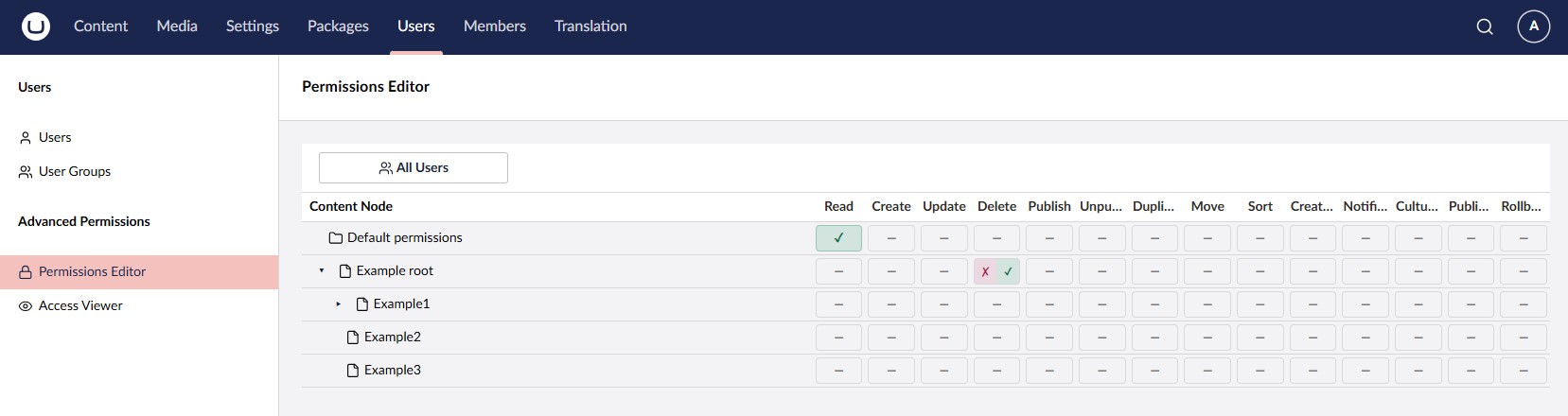
Pick a user group, browse the content tree, and manage all of its permission entries in one place. For each node and permission you can set Allow, Deny, or leave it unset (inherit). The Default permissions row at the top sets a baseline for all content, and the tree shows at a glance which nodes have entries defined.
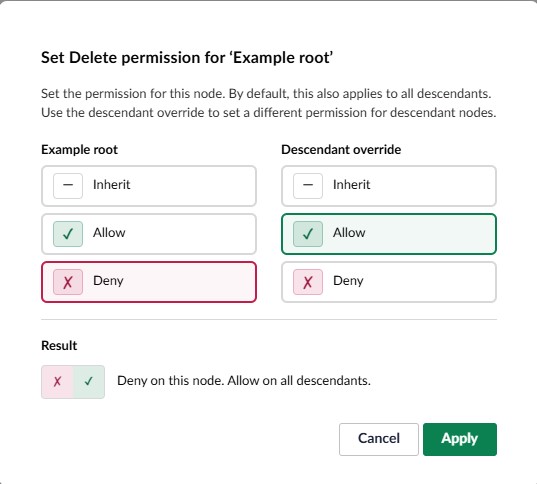
Clicking a cell opens the scope dialog. There you choose the state for this node and, if it should differ, a separate state for descendants. This is how you express patterns like "deny on the branch root, allow everywhere below" without touching any other permission.
Access Viewer
The Access Viewer answers "what can this user (or group) actually do here?". Pick a user or a user group, choose a node, and see whether each permission is allowed or denied.
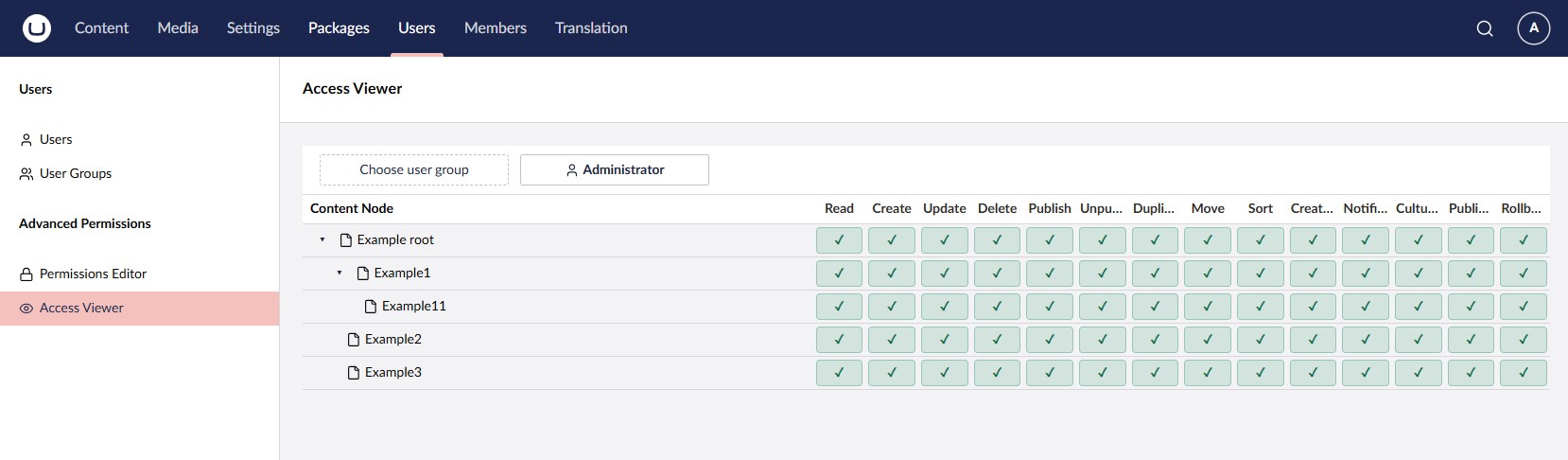
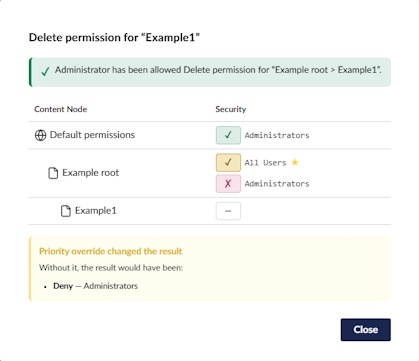
Click any result to open its reasoning chain, a full explanation of how the permission was determined: which user group contributed, from which node, and whether it was set explicitly or inherited. When a priority override changed the outcome, the dialog shows what the result would have been without it.
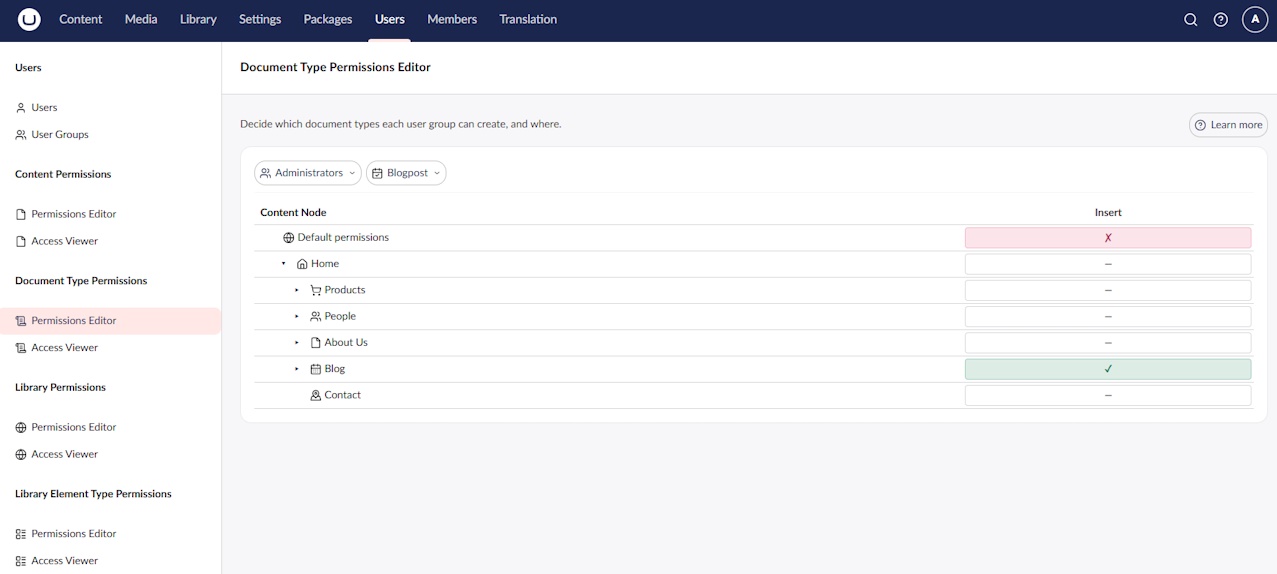
Document Type Permissions Editor
In Umbraco, when an editor adds content they choose from a list of document types allowed under the selected parent node. This list, the node's insert options, comes from the parent document type's configuration (its allowed child node types) and is the same for everyone: if a type is allowed under a node, every user who can create content there sees it. There is no built-in way to say that one user group may create a given type at a node while another may not.
This editor adds exactly that. Pick a user group and a document type, then walk the content tree setting Allow or Deny for that combination, with the same scope control as content permissions. A document type here means what it does everywhere else in the content section: the kind of page or content item an editor can add, such as a Landing Page, Blog Post, or News Item. Only full document types can be selected; element types are excluded, since they are building blocks used inside other content rather than pages an editor creates.
It works by filtering those insert options rather than replacing them. Umbraco still decides which document types are valid children of a node; the package then filters out of the Create menu the document types a group is not allowed to create. This only ever narrows the list. An Allow does not add a document type to the Create menu, it only keeps a type Umbraco already permits there. If a type is not a valid insert option on a node to begin with, no Allow will make it appear. So use Deny to take options away, and leave Allow (or inherit) for the options you want to keep.
For example, suppose your Blog folder allows both Blog Post and Landing Page as children. You want the Authors group to add blog posts there but never landing pages, while editors keep both. Deny Landing Page for Authors on the Blog folder: authors then see only Blog Post in the Create menu there, and editors are unaffected.
A document type defaults to Allow, the opposite of content permissions: it stays creatable everywhere Umbraco allows it until you narrow it with a Deny. The Default (applies everywhere) row sets that baseline.
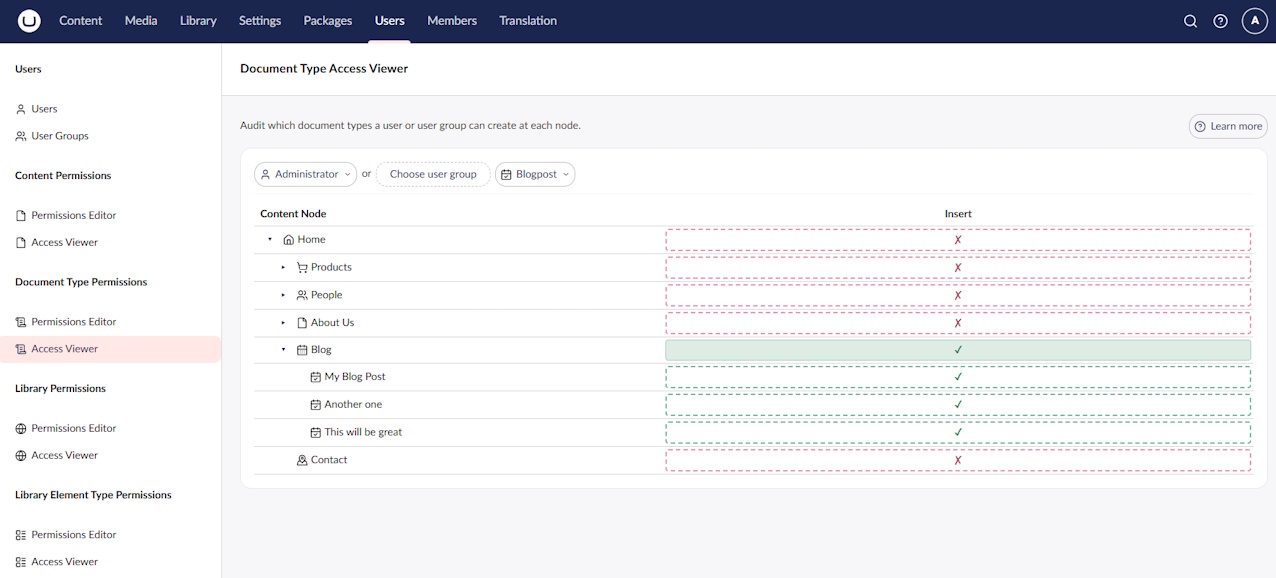
Insert Options Viewer
The counterpart audit screen. Pick a user or user group, then pick a document type, and the content tree shows, node by node, whether they can create that type there. For the chosen document type, each node resolves to one of three states:
- Allow: this type can be created at this node.
- Deny: this type is not allowed at this node.
- N/A: the type is not an insert option on this node in Umbraco itself (a structural rule, independent of these permissions).
As in the Access Viewer, click a cell for the full reasoning behind the result.
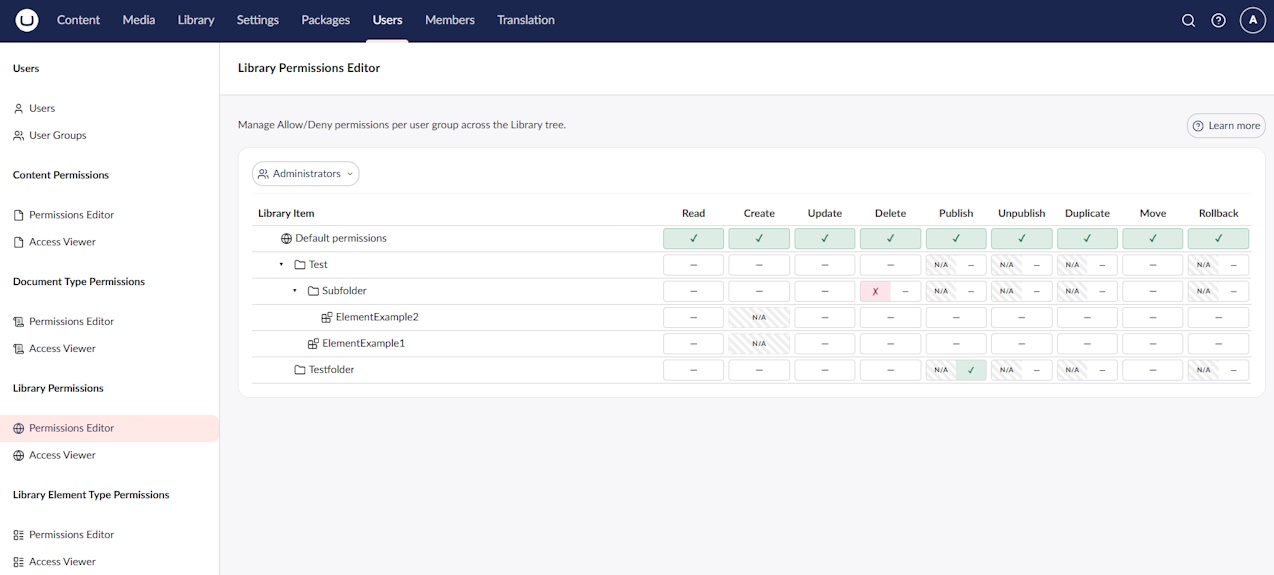
Library Permissions Editor
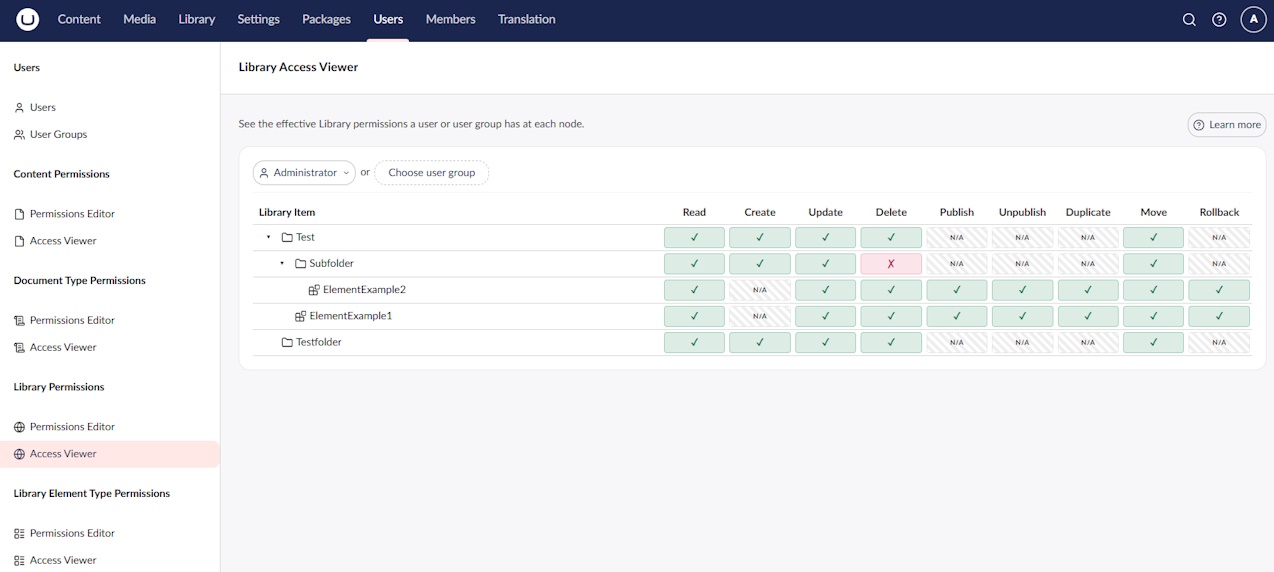
The Library holds reusable items — folders and elements — that live outside the main content tree. This editor manages, per user group, what each group may do to those items, node by node, using the same verbs as content (Read, Create, Update, Delete, Publish, Unpublish, Duplicate, Move, Rollback). It works exactly like the Content Permissions Editor: the same Allow/Deny states, inheritance down the tree, scope options, and Priority Override, with a Default permissions row at the top setting the baseline for the whole Library.
Some cells show a hatched N/A — a permission that does not apply to that kind of item. "Create" has no meaning on a single item, and item-only actions (Publish, Unpublish, Duplicate, Rollback) do not apply to a folder itself, only to the items inside it.
Library Access Viewer
The read-only companion to the Library Permissions Editor, and the Library equivalent of the Access Viewer. Pick a user or user group, browse the Library tree, and see the fully resolved permission for every item, combined across all the groups the subject belongs to. Click any cell for the reasoning chain: which group contributed, from which item, and whether the rule was set explicitly or inherited.
Library Element Type Permissions Editor
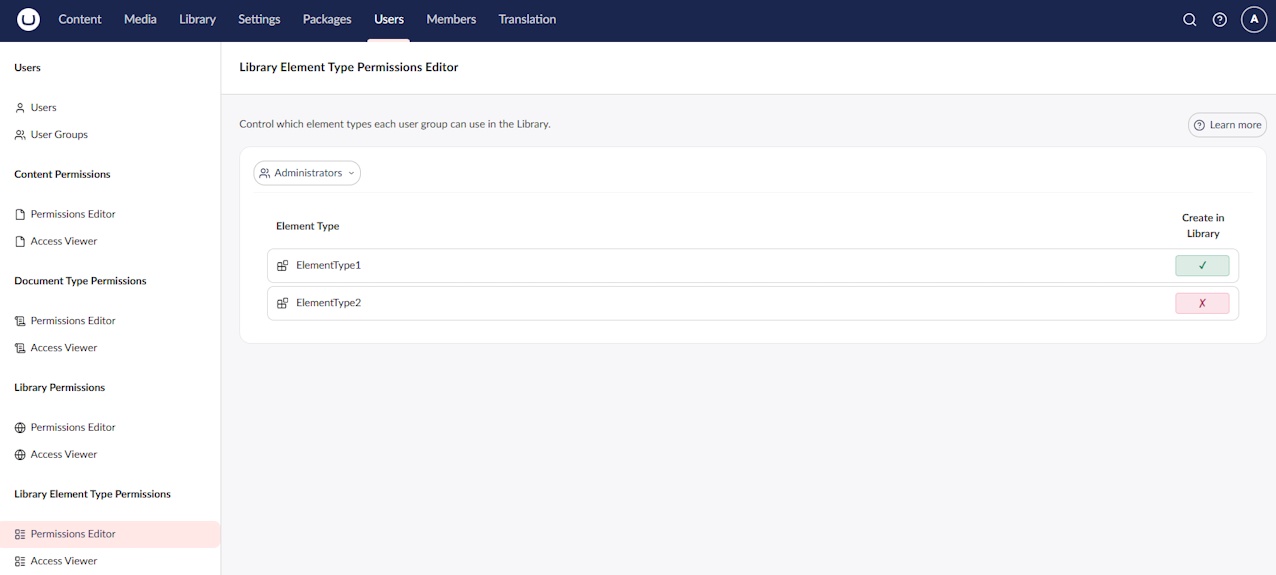
Element types are the building blocks you can add in the Library. This editor controls, per user group, which of them a group may create there. Like the Document Type Permissions Editor, this is a filter, not a grant — it behaves differently from the tree verbs above. It does not give access; it narrows the list of element types Umbraco already offers in the Library's Create menu.
Every element type is creatable by default, the opposite of content permissions (which default to Deny). A Deny hides an element type from the Library; an Allow never makes a type appear that isn't a valid Library element type to begin with — it only keeps one creatable and, with Priority Override, lets that choice win over a Deny coming from another of the user's groups. So use Deny to take options away, and leave Allow (or inherit) for the ones you want to keep.
Unlike the tree-based editors this choice is section-wide, not tied to a node — Umbraco does not provide a parent when you create an item in the Library — so you set a single "Create in Library" state per element type.
If the list is empty, no document types are marked as element types yet: mark a document type as an element type and enable "Allow in Library" for it to appear here.
Library Insert Viewer
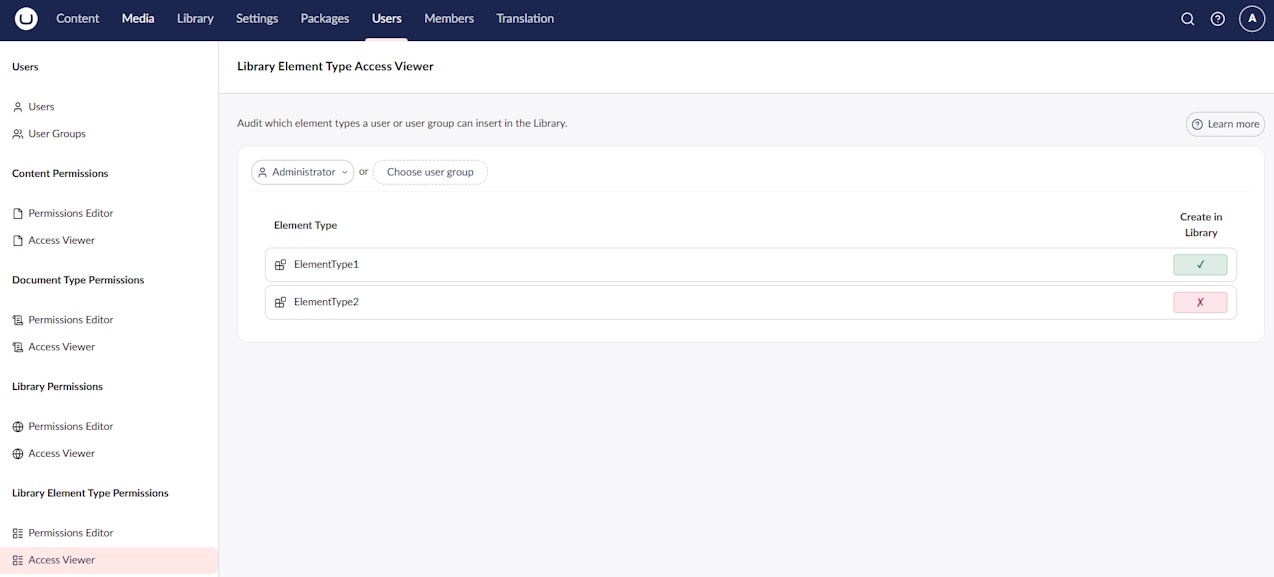
The read-only companion to the Library Element Type Permissions editor. Pick a user or user group and it lists every element type with whether that subject can create it in the Library, resolved across all their groups. Click a row for the reasoning. Because the decision is section-wide, this is a flat list rather than a tree, and an element type with no rules anywhere shows as allowed (creation in the Library is allowed by default).
How conflicts are resolved
When the package decides whether a user has a given permission on a node, it gathers every applicable entry from every group the user belongs to (including the All Users Group) and respects each entry's scope. An entry set directly on the node counts as explicit; a value that comes from an ancestor or the default baseline counts as inherited. It then applies this order of precedence, highest first:
- Explicit Deny overrides everything else.
- Explicit Allow overrides any inherited permission.
- Inherited Deny overrides an inherited Allow.
- Inherited Allow.
If no entry applies anywhere up the tree, the default is Deny for content permissions (Allow for insert options).
A couple of concrete examples:
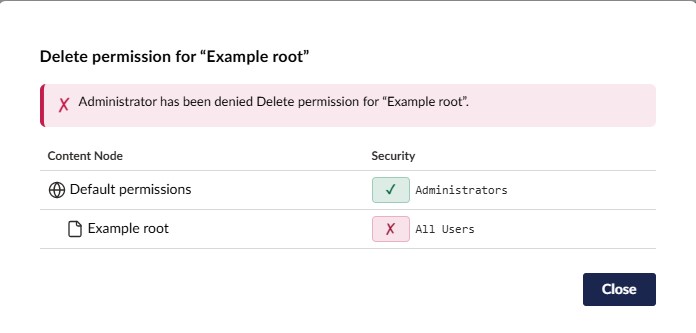
Example 1: Lock a node against deletion. You have a critical landing page and want to make sure nobody deletes it. Add a single entry: All Users Group, Deny, Delete, scope "This Node Only". It does not matter which groups a user belongs to, what those groups inherit from ancestors, or whether any of them have an explicit Allow for Delete on this node. The Deny wins. The only way to lift it is to edit that entry, or to set a priority override on the same node (explained next).
Example 2: Carve out an exception to a broad Allow. The "Editors" group has Allow for Publish on the Home node with scope "This Node and Descendants", so editors can publish anywhere under Home. You want to remove that for the Press Releases branch but keep every other permission. In the built-in system you would have to redeclare every permission you want to keep on Press Releases so that Publish falls out of the list. Here, one Deny entry for Publish on Press Releases does it, and every other inherited permission stays exactly as it was.
Priority Override
There is one deliberate exception to the order above. When a user belongs to several user groups, those groups can give conflicting answers for the same node and permission, and the default order does not always land where you want. Priority Override lets you step in and decide which entry wins.
You set it as a checkbox in the scope dialog of both editors, alongside the Allow/Deny choice. When an entry is flagged, it takes precedence over the normal order for that node and permission, so the setting you choose here almost always becomes the result, regardless of the user's other groups. Use it sparingly: it is an escape hatch, not an everyday tool.
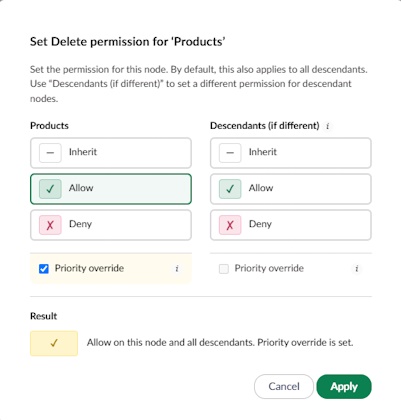
The Access Viewer makes overrides visible. When one changed the outcome, the reasoning chain says "Priority override changed the result" and shows what the result would have been without it.
Roadmap
These are planned directions, not commitments and in no particular order. Feedback and contributions are very welcome, and they help shape what comes next.
- Media permissions: extend the same model to the media tree, so media nodes get the same Allow/Deny, scope, and reasoning controls as content.
- Delete and move permissions for document types: extend type-based control beyond creation, so a user group can be allowed or denied deleting or moving content of a given document type.
- Insert options for blocks: bring the same per-group control to block editors, deciding which block types a group can add in Block List and Block Grid properties.
- A full-access "god" group: an optional user or user group that bypasses the permission system entirely and is always allowed, even over an effective Deny, for trusted administrators.
- Translations for every backoffice language: expand the built-in localization beyond English, Dutch, and German to cover all languages the Umbraco backoffice supports.
- Performance improvements: extendclient-side caching of resolved permissions, kept fresh through live updates such as webhooks or SignalR.
- Build on Umbraco core changes: adopt improvements made to Umbraco itself, based on feedback from this project, to simplify the integration once they ship.
Have an idea? Open an issue and let's talk about it.
Documentation
In-depth help is available both inside the backoffice (a description bar and a help modal on each editor/viewer) and as Markdown you can read here:
- Permission concepts — Allow/Deny, scope, inheritance, the All Users Group, and Priority Override.
Editors
- Content Permissions Editor
- Document Type Permissions Editor
- Library Permissions Editor
- Library Element Type Permissions
Viewers
Dutch translations live alongside, under help-docs/nl/. These files are the single source of truth for both the in-app help and this documentation.
Feedback
Found a bug or have a feature request? Please open an issue on GitHub.
License
This project is licensed under the MIT License.
| Product | Versions Compatible and additional computed target framework versions. |
|---|---|
| .NET | net10.0 is compatible. net10.0-android was computed. net10.0-browser was computed. net10.0-ios was computed. net10.0-maccatalyst was computed. net10.0-macos was computed. net10.0-tvos was computed. net10.0-windows was computed. |
-
net10.0
- Umbraco.Cms.Api.Management (>= 18.0.0 && < 19.0.0)
- Umbraco.Cms.Core (>= 18.0.0 && < 19.0.0)
- Umbraco.Cms.Infrastructure (>= 18.0.0 && < 19.0.0)
- Umbraco.Community.AdvancedPermissions.Abstractions (>= 18.1.0)
NuGet packages (1)
Showing the top 1 NuGet packages that depend on Umbraco.Community.AdvancedPermissions:
| Package | Downloads |
|---|---|
|
Umbraco.Community.AdvancedPermissions.AI
Optional AI companion for Umbraco.Community.AdvancedPermissions. Exposes read-only Umbraco AI copilot tools that explain effective permissions, find which user groups can access a node, audit permission configuration, and explain how the permission model works. |
GitHub repositories
This package is not used by any popular GitHub repositories.
| Version | Downloads | Last Updated |
|---|---|---|
| 19.0.0-beta.1 | 57 | 10/29/2026 |
| 18.3.0 | 104 | 10/29/2026 |
| 18.2.0 | 125 | 10/8/2026 |
| 18.2.0-rc.2 | 74 | 10/7/2026 |
| 18.2.0-rc.1 | 78 | 9/30/2026 |
| 18.1.0 | 568 | 8/6/2026 |
| 18.1.0-rc.1 | 88 | 7/31/2026 |
| 18.0.1 | 150 | 7/13/2026 |
| 18.0.0 | 140 | 6/28/2026 |
| 17.5.0 | 99 | 10/29/2026 |
| 17.4.1 | 172 | 10/13/2026 |
| 17.4.1-hotfix.1 | 69 | 10/13/2026 |
| 17.4.0 | 101 | 10/8/2026 |
| 17.4.0-rc.2 | 158 | 10/7/2026 |
| 17.4.0-rc.1 | 76 | 9/30/2026 |
| 17.3.0 | 262 | 8/6/2026 |
| 17.3.0-rc.1 | 86 | 7/31/2026 |
| 17.2.1 | 135 | 7/13/2026 |
| 17.2.0 | 159 | 7/8/2026 |
| 17.2.0-beta.1 | 86 | 7/6/2026 |