TheBuilder.WebAnalytics
0.1.2
See the version list below for details.
dotnet add package TheBuilder.WebAnalytics --version 0.1.2
NuGet\Install-Package TheBuilder.WebAnalytics -Version 0.1.2
<PackageReference Include="TheBuilder.WebAnalytics" Version="0.1.2" />
<PackageVersion Include="TheBuilder.WebAnalytics" Version="0.1.2" />
<PackageReference Include="TheBuilder.WebAnalytics" />
paket add TheBuilder.WebAnalytics --version 0.1.2
#r "nuget: TheBuilder.WebAnalytics, 0.1.2"
#:package TheBuilder.WebAnalytics@0.1.2
#addin nuget:?package=TheBuilder.WebAnalytics&version=0.1.2
#tool nuget:?package=TheBuilder.WebAnalytics&version=0.1.2
Web Analytics



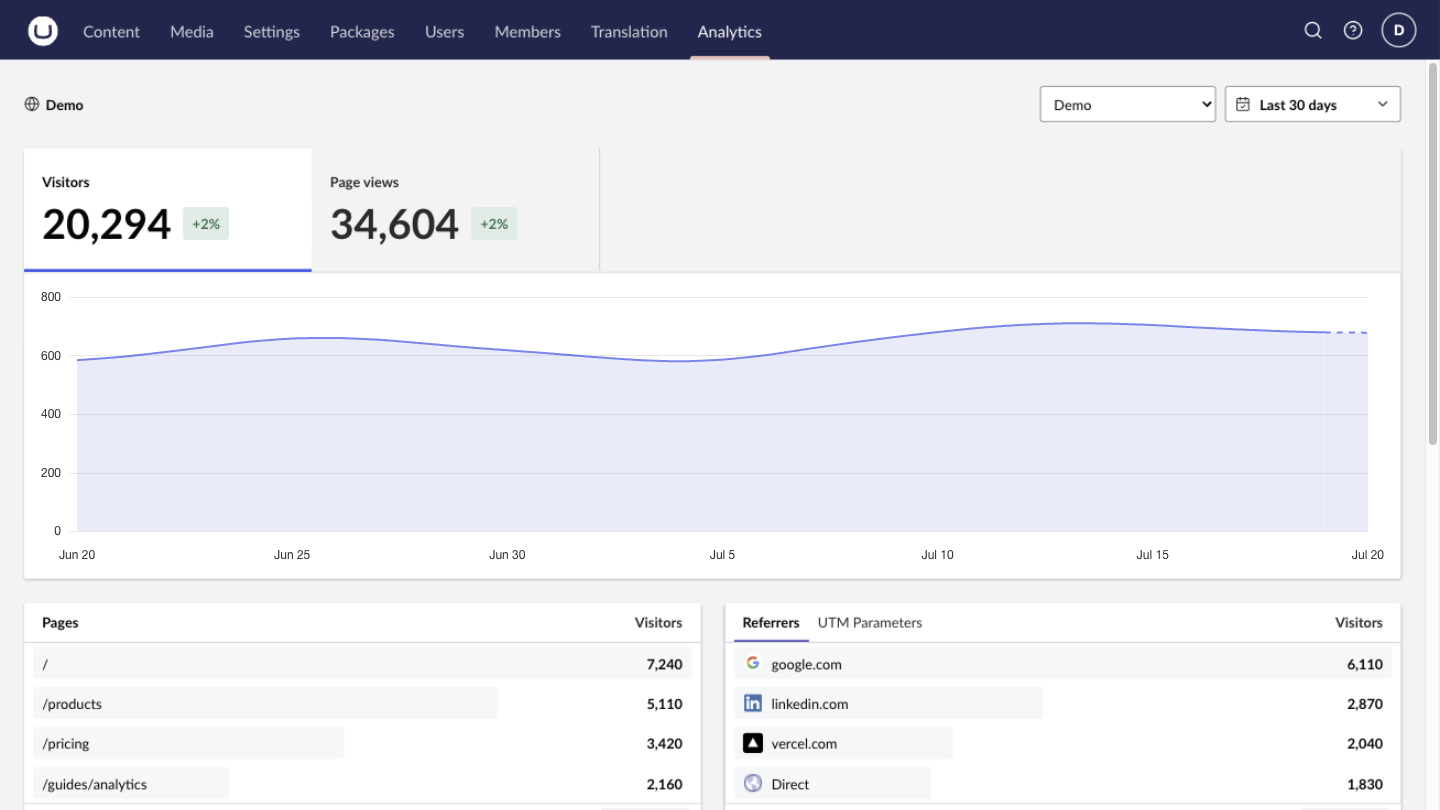
Web Analytics brings Vercel Web Analytics into Umbraco, giving editors site-wide and page-level insights without leaving the backoffice.
What you get
- A dedicated Analytics section for visitors, page views, traffic trends, audience, referrers, pages, routes, campaigns, custom events, and feature flags.
- Page-level analytics on configured, published documents, automatically filtered to the document's route.
- Date comparisons and drill-down views that turn site-wide trends into useful content context.
- Multiple Vercel project connections for multi-site Umbraco installations.
- Server-side Vercel API access, keeping access tokens out of the browser and Umbraco content.
The package reads analytics already collected by Vercel. It does not add or replace the tracking on your website.
Requirements
- Umbraco CMS 17.1–18.x.
- A Vercel project with Web Analytics enabled and installed.
- A Vercel access token scoped to the personal account or team that owns the project.
- The Vercel project ID (
prj_...).
Install
Add the package to the Umbraco web project:
dotnet add path/to/Your.Umbraco.Web.csproj package TheBuilder.WebAnalytics
The package registers its services and backoffice extensions automatically. No changes to Program.cs are required.
Build and deploy the Umbraco application as usual. The package's App_Plugins assets are included in the publish output through NuGet static web assets.
Configure a production connection
Configuration uses two sources:
- Project details, mappings, and display settings are stored in Umbraco.
- The Vercel access token stays in the application's secret configuration.
1. Create a Vercel access token
Create a token in the Vercel account settings and scope it to the account or team that owns the project. Copy it when it is created; Vercel does not show it again.
For a team-owned project, also copy either the team ID (team_...) or team slug. Personal projects do not need either value. The backoffice presents these as one Team ID or slug field. See the Vercel REST API authentication documentation.
2. Add the token to the Umbraco deployment
Configure one shared token for the package:
VercelAnalytics__AccessToken
Examples:
# Local shell or container environment
export VercelAnalytics__AccessToken="your_token"

# .NET user-secrets
dotnet user-secrets init \
  --project path/to/Your.Umbraco.Web.csproj

dotnet user-secrets set \
  "VercelAnalytics:AccessToken" \
  "your_token" \
  --project path/to/Your.Umbraco.Web.csproj
Use the equivalent secret/app-setting facility in Azure App Service, Kubernetes, Docker, or the hosting platform. Do not commit the token to appsettings.json or source control.
Restart every Umbraco application instance after adding or rotating a token. Tokens are loaded from server configuration at application startup.
The shared token is used by every connection. If a project must use a different token, expand Token override for that connection and copy the generated environment-variable name. Overrides use VercelAnalytics__ConnectionAccessTokens__{connection-guid}.
3. Configure the connection in Umbraco
Sign in as an administrator and open Settings → Web Analytics.
- Select Add connection.
- Enter the Vercel project ID. The project name is loaded from Vercel.
- For a team project, enter its team ID or slug in the combined Team ID or slug field.
- Configure page analytics mappings if document-level reports are required.
- Select the document types that should display the Analytics workspace view, or enable all document types.
- Enable the package. The first connection is used as the initial default.
- Select Save settings, then Test connection.
The test confirms that Vercel accepts the token, project, and team configuration. The settings screen reports whether the shared token or a connection override was found; it never displays or stores the token itself.
Document analytics mappings
Mappings are optional. A connection without mappings is available in the global Analytics section but does not add reports to document workspaces.
For document analytics, select each Umbraco site's root document. The nearest mapped ancestor determines which Vercel connection a document uses.
The document Analytics view is shown only when all of these conditions are met:
- The document is published and has a published route.
- Its nearest configured document root resolves to a connection.
- Its document type is enabled for that connection.
- The current user has Content-section access and read permission for the document.
Backoffice permissions
On the first successful package startup, the Analytics section is added to the built-in Administrators user group. This initialization runs once and does not re-add the section if it is removed later.
To give other users access, add the Analytics section to their Umbraco user group. Global reports require Analytics-section access. Document reports additionally require Content-section access and document read permission.
Only administrators can open or update Settings → Web Analytics.
Configuration-only setup
The backoffice settings screen is the normal configuration path. A deployment can instead bootstrap all non-secret settings from appsettings.json:
{
  "VercelAnalytics": {
    "Enabled": true,
    "DefaultRangeDays": 30,
    "CacheDuration": "00:05:00",
    "Connections": [
      {
        "Key": "aaaaaaaa-aaaa-aaaa-aaaa-aaaaaaaaaaaa",
        "ProjectId": "prj_...",
        "Team": "team_...",
        "DocumentRootKeys": [
          "11111111-1111-1111-1111-111111111111"
        ],
        "EnableAllDocumentTypes": false,
        "EnabledDocumentTypeKeys": [
          "22222222-2222-2222-2222-222222222222"
        ]
      }
    ]
  }
}
Team accepts either a Vercel team ID beginning with team_ or a team slug. Leave it empty for a personal project.
Configuration reference
Package settings use the VercelAnalytics section.
| Key | Default | Description |
|---|---|---|
Enabled |
false |
Enables the Analytics section and configured document workspace views. |
AccessToken |
Empty | Shared Vercel access token used by every connection. Supply through secret configuration. |
DefaultRangeDays |
30 |
Initial report range in days. Valid values are 1–730. |
CacheDuration |
00:05:00 |
Per-instance in-memory cache duration. Valid values are zero to one hour. |
Connections |
[] |
Vercel project connection definitions. The first connection becomes the initial default. |
ConnectionAccessTokens |
Empty | Optional secret dictionary keyed by a connection GUID. Prefer the copyable environment-variable name shown in the settings UI. |
Each entry under Connections supports:
| Key | Default | Description |
|---|---|---|
Key |
Generated GUID | Stable internal identity. The settings UI creates this automatically; provide a fixed GUID for deterministic configuration-only setup. |
DisplayName |
Empty | Cached project name used until the name can be loaded from Vercel. |
ProjectId |
Required | Vercel project ID beginning with prj_. |
Team |
Empty | Optional team ID (team_...) or team slug. Leave empty for a personal project. |
DocumentRootKeys |
[] |
Umbraco document-root GUIDs that map document analytics to this connection. |
EnableAllDocumentTypes |
false |
Shows document analytics for every document type beneath a mapped root. |
EnabledDocumentTypeKeys |
[] |
Document-type GUIDs that show document analytics when all types are not enabled. |
EnabledDocumentTypes |
[] |
Document-type aliases used by configuration-only bootstrapping. Prefer stable document-type keys for settings managed in Umbraco. |
Keep tokens out of the JSON file. Supply the shared token through VercelAnalytics__AccessToken; only use VercelAnalytics__ConnectionAccessTokens__{connection-guid} when one connection requires an override.
Before the settings screen has saved anything, Umbraco uses these server options as the initial configuration. After an administrator saves the settings screen, the non-secret settings are stored in Umbraco's database and become the source of truth. Access tokens continue to come from server configuration, with a connection-specific token taking precedence over the shared token.
In a load-balanced deployment, restart all Umbraco instances after changing saved connection settings or server-side tokens so every process uses the same configuration.
The default cache duration is five minutes. Each Umbraco instance maintains its own in-memory report cache.
Verify the deployment
After deployment:
- Open Settings → Web Analytics and confirm the shared access token says Configured on the server.
- Select Save settings, then Test connection.
- Open the global Analytics section and confirm totals and history load.
- If document analytics is enabled, open a mapped published document and select its Analytics workspace view.
- Grant the Analytics section to any non-administrator user groups that need global reports.
The available reporting window and some dimensions depend on the Vercel plan and the data recorded by the project. Unsupported optional panels are hidden rather than treated as connection failures.
Troubleshooting
| Symptom | Check |
|---|---|
| Token missing | Configure VercelAnalytics__AccessToken, or a connection-specific override, and restart the application. |
Vercel returns 401 or 403 |
Confirm the token is valid, scoped to the owning account/team, and has access to the configured project. |
Vercel returns 400 |
Verify the project ID and the optional Team value. |
| Analytics section is not visible | Add the Analytics section to the user's Umbraco user group. The automatic administrator grant runs only once. |
| Document Analytics view is not visible | Confirm the document is published, beneath a configured document root, uses an enabled document type, and the user can read it. |
| No data appears | Confirm Web Analytics is enabled and installed on the public site, production traffic has been recorded, and the selected date is inside Vercel's reporting window. |
| Settings differ between application instances | Restart every instance after changing settings or tokens. |
Development
The example app opts into development data through VercelAnalytics:EnableMockConnections in its development settings. Settings → Web Analytics then includes presets for a full demo, UTM campaigns, feature flags, and custom events. Add and save a mock connection like any other connection, then select it in the Analytics dashboard. Mock reports are deterministic, require no access token, and never call Vercel. The package keeps mock connections disabled by default, including when it is consumed by another project running in Development.
The client uses pnpm 11. From src/TheBuilder.WebAnalytics/Client:
pnpm install
pnpm check
pnpm test
pnpm build
The generated API client is checked in with the package source. The example host registers the package's OpenAPI document for development without adding version-specific OpenAPI dependencies to the distributed package.
Run the example host against the Umbraco version whose document you want to use:
# Umbraco 17
dotnet run \
  --project samples/TheBuilder.WebAnalytics.Example \
  -p:UmbracoVersion=17.4.0

# Umbraco 18
dotnet run \
  --project samples/TheBuilder.WebAnalytics.Example \
  -p:UmbracoVersion=18.0.0
Use a separate database for each major when switching the example host between versions. Umbraco upgrades its database schema and does not support downgrading that database to an earlier major.
Then regenerate the client from the matching development endpoint:
cd src/TheBuilder.WebAnalytics/Client

# Umbraco 17
corepack pnpm generate-client -- \
  https://localhost:44389/umbraco/swagger/thebuilderwebanalytics/swagger.json

# Umbraco 18
corepack pnpm generate-client -- \
  https://localhost:44389/umbraco/openapi/thebuilderwebanalytics.json
| Product | Versions Compatible and additional computed target framework versions. |
|---|---|
| .NET | net10.0 is compatible. net10.0-android was computed. net10.0-browser was computed. net10.0-ios was computed. net10.0-maccatalyst was computed. net10.0-macos was computed. net10.0-tvos was computed. net10.0-windows was computed. |
-
net10.0
- MessagePack (>= 3.1.7)
- Microsoft.OpenApi (>= 2.7.5)
- Umbraco.Cms.Api.Common (>= 17.1.0 && < 19.0.0)
- Umbraco.Cms.Api.Management (>= 17.1.0 && < 19.0.0)
- Umbraco.Cms.Web.Common (>= 17.1.0 && < 19.0.0)
- Umbraco.Cms.Web.Website (>= 17.1.0 && < 19.0.0)
NuGet packages
This package is not used by any NuGet packages.
GitHub repositories
This package is not used by any popular GitHub repositories.
| Version | Downloads | Last Updated |
|---|---|---|
| 0.4.3 | 143 | 8/22/2026 |
| 0.4.2 | 171 | 8/14/2026 |
| 0.4.1 | 127 | 8/13/2026 |
| 0.4.0 | 124 | 8/6/2026 |
| 0.3.4 | 135 | 7/30/2026 |
| 0.3.3 | 121 | 7/23/2026 |
| 0.3.2 | 126 | 7/22/2026 |
| 0.3.1 | 128 | 7/22/2026 |
| 0.3.0 | 120 | 7/21/2026 |
| 0.2.0 | 125 | 7/20/2026 |
| 0.1.3 | 119 | 7/20/2026 |
| 0.1.2 | 121 | 7/20/2026 |
| 0.1.1 | 117 | 7/20/2026 |
| 0.1.0 | 174 | 7/19/2026 |