Fesh 0.35.0-net472
See the version list below for details.
dotnet add package Fesh --version 0.35.0-net472
NuGet\Install-Package Fesh -Version 0.35.0-net472
<PackageReference Include="Fesh" Version="0.35.0-net472" />
<PackageVersion Include="Fesh" Version="0.35.0-net472" />
<PackageReference Include="Fesh" />
paket add Fesh --version 0.35.0-net472
#r "nuget: Fesh, 0.35.0-net472"
#:package Fesh@0.35.0-net472
#addin nuget:?package=Fesh&version=0.35.0-net472&prerelease
#tool nuget:?package=Fesh&version=0.35.0-net472&prerelease

Fesh




Fesh is an F# Editor & Scripting Host, for Windows.
I made it to embed F# as a scripting tool in other applications. But it works just as well on its own.
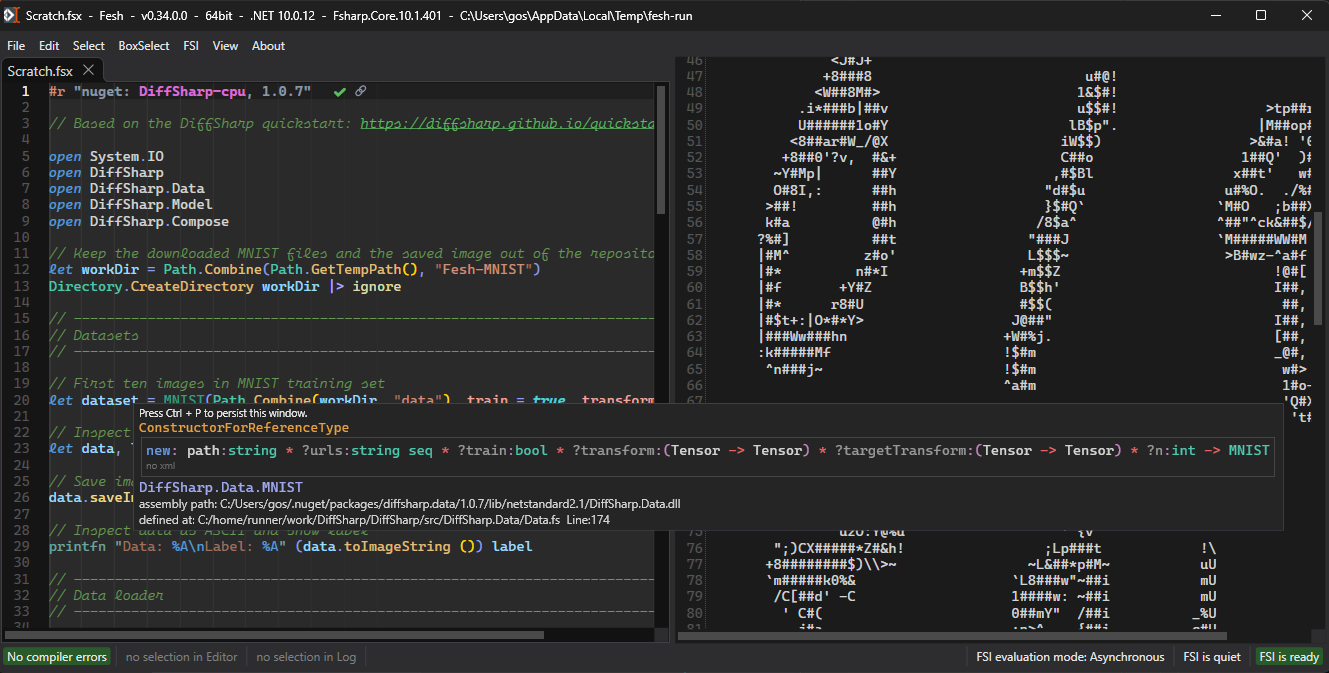
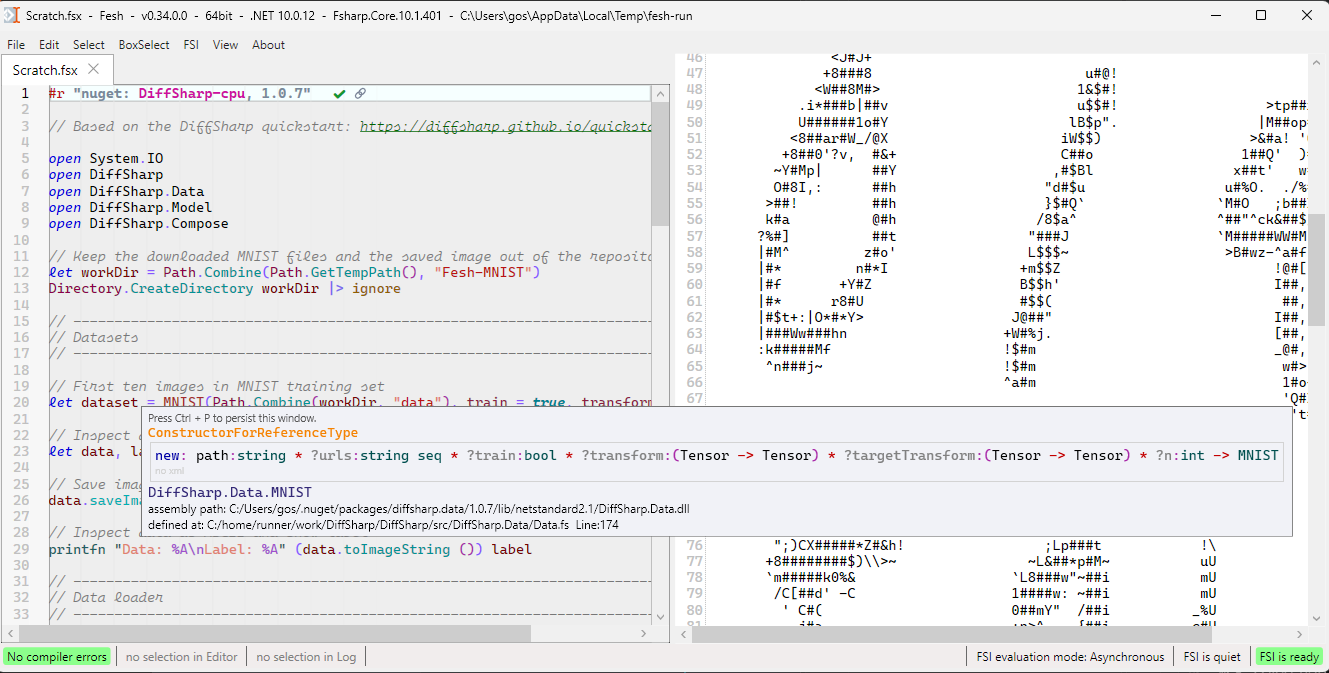
Fesh is built on the excellent AvalonEdit. That is why it only runs on Windows (for now). It supports F# 10 and has the IDE features you would expect: semantic syntax highlighting, type info, autocomplete and go to definition.
Unlike a typical F# REPL, Fesh has the input and the output in two separate windows. Just like Don Syme always wanted it. You can even color the output with Fesher.
Unlike most F# editors, Fesh runs FSharp.Compiler.Service in the same process as the UI. There is no separate language server and no separate FSI process. That is what makes it easy to host Fesh inside other apps, as an embedded scripting editor. And that was in fact my main reason for building it.
I started prototyping Fesh in 2017, and I have used it professionally for scripting in Rhino3D since 2019. It has been public since 2024. Before that I used the Tsunami F# editor, as you can see in my talk on the Louvre Abu Dhabi Dome. But Tsunami is no longer available. So I built Fesh.
To host Fesh in your own app, there is the NuGet package Fesh. See Fesh.Rhino and Fesh.Revit for how I use it.
Features
Autocomplete
The completion list opens as you type and after a dot, also in the middle of a word.
A dot after a closing bracket works too, like in xs[0]. or Guid.NewGuid().,
and so does a dot at the start of the next line of a method chain.
Type info
Hover over a name to see its inferred signature, all of its xml docs, and the path of the assembly it comes from.
Go to Definition
Press F12, or right-click a name, to jump to where it is defined: in the same file, or in a file loaded with #load.
For names from NuGet packages and other assemblies, Fesh offers to open their source in VS Code.
It finds the source on your computer, via SourceLink, or by cloning the GitHub repository of the package at the commit it was built from.
NuGet
Type #r "nuget: and you get a list of the packages you used before, plus what nuget.org finds for the name you typed.
After each #r "nuget: ..." line Fesh shows if the version is the latest.
One click updates it, pins a version, or takes you to a newer prerelease and back.
It also fixes the casing of the package name.
If you don't want this, set CheckNugetVersions=False in the Settings.txt file.
Dark and light theme
Switch between them in the View menu, without a restart.
The dark colors follow F# in VS Code with the Ionide extension.
Syntax highlighting
Highlighting runs in two passes. First the regex rules of SyntaxHighlightingFSharp.xshd, then the semantic colors from the F# Compiler Service. Mutable values are underlined, so you see at a glance where state can change.
If you want different colors, go to About → Open and watch SyntaxHighlighting in VS Code.
Each time you save the file in VS Code, all open tabs in Fesh update right away.
Running code
F5 evaluates the whole file, Ctrl + Enter the current lines, and Alt + Enter the selected text.
Ctrl + Break cancels a running script, even one that waits in a blocking call like Thread.Sleep.
Ctrl + Alt + R resets FSI.
All the other shortcuts are listed in the menus.
Compile a script
When a script grows up, FSI → Compile Script turns it into an .fsproj and builds a dll from it, via the dotnet SDK or via MSBuild.
The #r line for the new dll is copied to your clipboard.
Status bar
The status bar shows the number of compiler errors. Click on it to scroll to the first one.
Selection highlighting
Select some text and all its occurrences get highlighted, in the editor and in the output window. The status bar shows how many there are. Click on it to step through them.
Drag and drop
Drag any file or folder into the editor to get its full path as a string at the cursor position.
For *.dll files it goes to the top, prefixed with #r.
For *.fsx files it goes to the top, prefixed with #load.
Font
The default font is Cascadia Mono.
Besides italic it also has a cursive script mode. I use it for comments.
To get ligatures, set the font to Cascadia Code.
You can change the font in the Settings.txt file, via the menu: About → Open Settings Folder.
How to install the standalone app
Installer
The easiest way is to run the Setup.exe from Releases. Fesh will offer to update itself when a new version is available. There is a .NET 10 and a .NET Framework 4.8 version. Apart from the runtime they are the same.
The installer is made with Velopack and is digitally signed.
No admin rights are needed to install or run Fesh.
It gets installed in %LOCALAPPDATA%\Fesh (or %LOCALAPPDATA%\Fesh.net48),
and it keeps its settings in %APPDATA%\Fesh\Settings (or %APPDATA%\Fesh.net48\Settings).
A shortcut is created on the desktop.
Portable
Each release also has a portable zip.
Extract it and put it wherever you like.
It works just like the installed app, but keeps its Settings folder in its own folder.
The .portable file in that folder tells Fesh to do so.
It also offers to update itself when a new version is available.
Build from source
dotnet build FeshStandalone.fsproj
You still get notified about new releases, but you have to install them yourself.
How to host Fesh in another app
Use the NuGet package Fesh.
Each release has a package version for each runtime: one with a -net472, -net8, -net9 or -net10 suffix.
The version without a suffix is for .NET 10.
To build the package yourself, run:
dotnet build FeshHosting.fsproj
Release Notes
For the changes in each release, see the CHANGELOG.md.
License
Fesh is licensed under the MIT License.
| Product | Versions Compatible and additional computed target framework versions. |
|---|---|
| .NET Framework | net472 is compatible. net48 was computed. net481 was computed. |
-
.NETFramework 4.7.2
- AvalonLog (>= 0.21.0)
- Fittings (>= 0.10.0)
- FSharp.Compiler.Service (>= 43.12.401)
- FSharp.Core (>= 10.1.401)
- Microsoft.VisualBasic (>= 10.3.0)
- NuGet.Protocol (>= 7.9.0)
- NuGet.Versioning (>= 7.9.0)
- System.Private.Uri (>= 4.3.2)
- Velopack (>= 1.2.161)
NuGet packages
This package is not used by any NuGet packages.
GitHub repositories
This package is not used by any popular GitHub repositories.
| Version | Downloads | Last Updated |
|---|---|---|
| 0.35.0 | 26 | 10/11/2026 |
| 0.35.0-net9 | 37 | 10/11/2026 |
| 0.35.0-net8 | 30 | 10/11/2026 |
| 0.35.0-net472 | 33 | 10/11/2026 |
| 0.35.0-net10 | 32 | 10/11/2026 |
| 0.34.0 | 58 | 10/6/2026 |
| 0.34.0-net9 | 51 | 10/6/2026 |
| 0.34.0-net8 | 46 | 10/6/2026 |
| 0.34.0-net472 | 56 | 10/6/2026 |
| 0.34.0-net10 | 58 | 10/6/2026 |
| 0.33.5 | 93 | 10/5/2026 |
| 0.33.5-net9 | 86 | 10/5/2026 |
| 0.33.5-net8 | 88 | 10/5/2026 |
| 0.33.5-net472 | 91 | 10/5/2026 |
| 0.33.5-net10 | 93 | 10/5/2026 |
| 0.33.2 | 99 | 10/1/2026 |
| 0.33.2-net9 | 86 | 10/1/2026 |
| 0.33.2-net8 | 97 | 10/1/2026 |
| 0.33.2-net472 | 95 | 10/1/2026 |
| 0.33.2-net10 | 95 | 10/2/2026 |
### Added
- a dark theme. Switch it with 'Toggle Dark / Light Theme' in the View menu. It switches right away, including the text already printed to the Log. The choice is saved as `DarkTheme` in the Settings.txt file.
- the dark colors of the syntax highlighting are in the SyntaxHighlightingFSharp.xshd file, as `darkForeground` attributes next to the light colors. They are based on the colors of F# in VS Code with its default dark theme and the Ionide extension, including the colors of nested brackets. All the distinctions of the light theme are kept, with shades of these colors
- mutable values and mutable record fields are underlined, in both themes. They have their own color, and so do the `mutable` keyword and the `<-` assignment
- a completion list for the package name in `#r "nuget: ..."` lines, with the previously used packages, the most used first. A package counts as used when it is picked from this list, and when code with its `#r "nuget: ..."` line is evaluated without errors. The counts are saved in the NuGet-Statistic.txt file in the Settings folder. From the third typed character on, the packages found on nuget.org are added to the list
- the control after a `#r "nuget: ..."` line also offers a newer prerelease, if there is one. For a prerelease version it offers a button to return to the latest stable version
- an animated spinner after a `#r "nuget: ..."` line, while the versions of its package are looked up for the first time
- the package name in a `#r "nuget: ..."` line gets the casing from its NuGet source, e.g. `fsharp.data` becomes `FSharp.Data`, as soon as its versions are looked up
- Go to Definition (F12, or right-click a name): selects where the name is defined, in the same file or in a file loaded with `#load`. For names from assemblies, like NuGet packages, it asks to open their source in VS Code. A source file on this computer opens with its git repository folder. Otherwise the source is found via SourceLink, or via the GitHub repository and commit in the .nuspec file of the package. Then either only the file is downloaded, or the repository is cloned with git at that commit, so that VS Code can load the project. From big repositories only the folder of the project is checked out. Both are cached in the Temp folder
### Changed
- the font of the tab headers is bigger. In the dark theme the tabs have rounded corners, and the selected tab curves into the editor below it, without the accent line on top. The border of the tabs continues around the editor
- the colored backgrounds of the error status and the FSI status in the status bar have rounded corners
- the colors of the code editor and of the Log window are in the SyntaxHighlightingFSharp.xshd file too, as `Editor.` and `Log.` colors, with `dark...` attributes for the dark theme. This includes the background, the foreground, the line number margin and the line numbers. The line number margin of the Log window has its own colors now. They are reloaded with the rest of the file, so all of them can be edited live with 'Open and watch SyntaxHighlighting in VS Code' in the About menu
- the colors of the semantic highlighting are in the SyntaxHighlightingFSharp.xshd file too, as `Semantic.` colors, so they can be edited and reloaded like the other syntax colors
- reloading the SyntaxHighlightingFSharp.xshd file after an edit updates all open tabs, not only the current one
- on .NET, cancelling a running script calls `System.Runtime.ControlledExecution` directly instead of changing private fields of FSharp.Compiler.Service via reflection. For this FSI always runs with `--exec`, it is added if it is missing in the FSI-Arguments.txt file
- highlighting the occurrences of the selected text in a long Log is faster. The Log text is no longer copied for each search, only new output is added, and new output is searched without a 50 ms delay
- 'Compile Script via MSBuild' finds MSBuild.exe via vswhere.exe, so it also finds Visual Studio 2026 and the Build Tools
- update AvalonLog to `0.21.0`, it brings AvalonEditB `2.5.0`
### Fixed
- in `p.X` only the record field `X` gets the color of record fields, not the `p.` before it
- typing a dot after a closing bracket, like in `System.Guid.NewGuid().` or `xs[0].`, opens the completion list with the members of that expression. Whitespace before the dot is skipped too, so it also works at the start of a correctly indented line, like in a method chain on several lines
- on .NET, cancelling a script that waits in a blocking call like `Thread.Sleep` no longer freezes the editor until that call returns
- a reset of FSI disposes the previous session. Before, every reset kept the previous session with its loaded references and its assembly resolve handler. If an evaluation of the previous session is still running, the session is disposed when that evaluation ends
- 'Open in VS Code', 'Open with VS Code' for file paths, and opening the SyntaxHighlightingFSharp.xshd file start VS Code via its `code.cmd` from the PATH. Before, Windows started `Code.exe` directly, hidden, and VS Code could ignore the file to open
- code that is edited while it is being evaluated is no longer marked as evaluated when the evaluation finishes
- in xml doc tooltips, inline tags like `<c>` outside of a `<summary>` tag are shown as code, not as a section header
- 'Compile Script' resolves the paths in `#r` and `#load` lines relative to the file that contains them, not to the current directory. It also handles the `#r` and `#load` lines in files that are loaded with `#load`
- 'Compile Script' sometimes did not print the `#r` line of the built dll and did not copy it to the clipboard, because the last build output arrived after the build process had ended