StarFlare.AudioVisuali... 1.0.99 License Info
StarFlare.AudioVisualizer.WPF
1.0.99
Getting Started
Step 1: Import the Core and WinForms SDK
System Requirements
List the basic environment requirements needed to run the project:
- Operating System: Windows 10 or higher
- .NET Version: .NET 6.0 or higher
NuGet Package Installation
To use the Realtime control, you need to install the following NuGet packages:
StarFlare.AudioVisualizer.Core
StarFlare.AudioVisualizer.WinForm
StarFlare.AudioVisualizer.WPF
You can install these packages by running the following commands in the NuGet Package Manager Console:
Install-Package StarFlare.AudioVisualizer.Core
Install-Package StarFlare.AudioVisualizer.WinForm
Install-Package StarFlare.AudioVisualizer.WPF
Alternatively, you can add them via the Package Manager UI by searching for each package.
Usage
using AudioVisualizer;
using AudioVisualizer.WinForm;
Step 2: Add the RealtimeApiWinFormControl Control
Drag and drop the AudioVisualizerView onto your form or add it programmatically:
AudioVisualizerView audioVisualizer = new AudioVisualizerView();
this.Controls.Add(audioVisualizer );
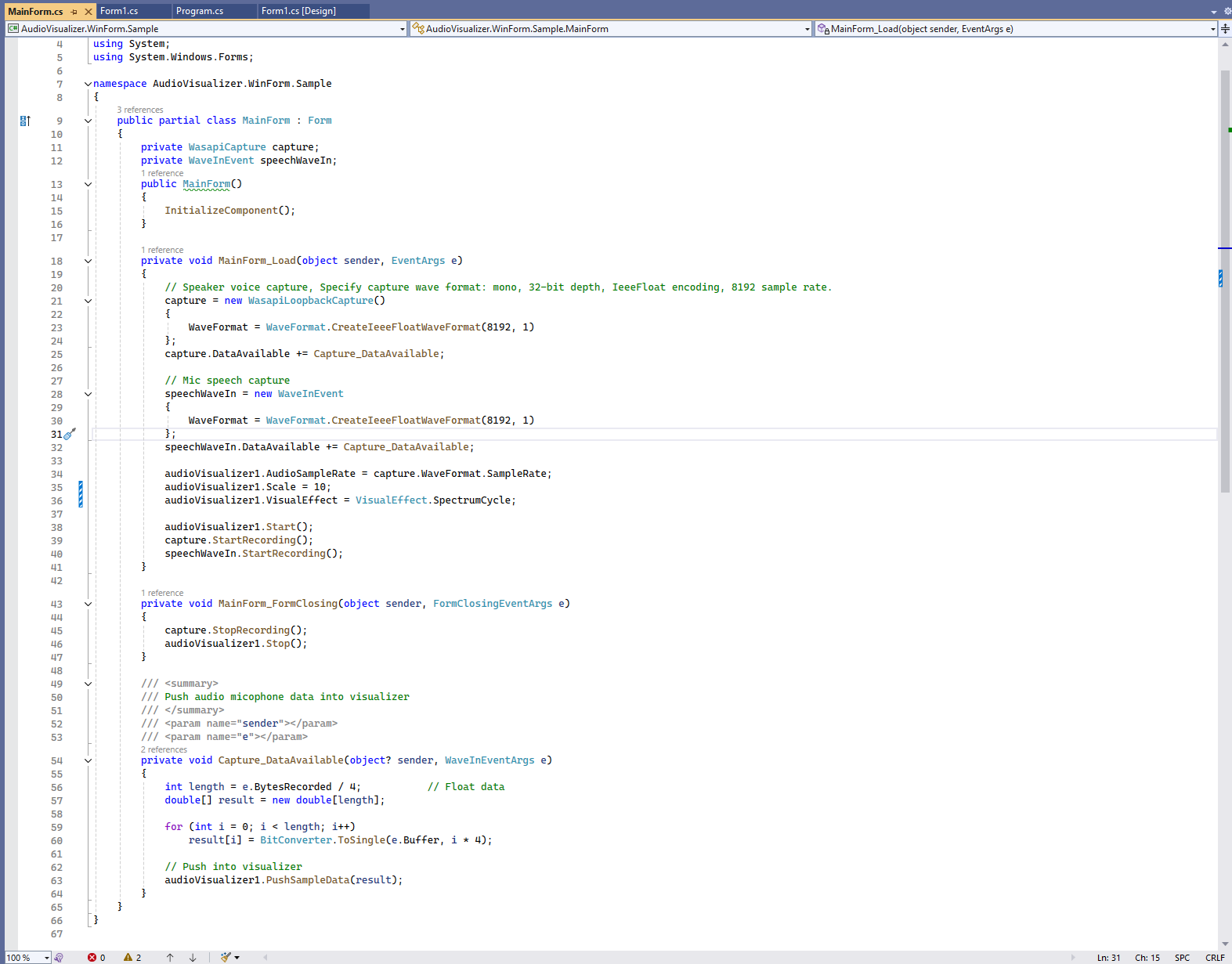
Step 3: Get Hook up microphone and speaker
        private void MainForm_Load(object sender, EventArgs e)
        {
            // Speaker voice capture, Specify capture wave format: mono, 32-bit depth, IeeeFloat encoding, 8192 sample rate.
            capture = new WasapiLoopbackCapture()
            {
                WaveFormat = WaveFormat.CreateIeeeFloatWaveFormat(8192, 1)
            };
            capture.DataAvailable += Capture_DataAvailable;

            // Mic speech capture
            speechWaveIn = new WaveInEvent
            {
                WaveFormat = WaveFormat.CreateIeeeFloatWaveFormat(8192, 1)
            };
            speechWaveIn.DataAvailable += Capture_DataAvailable;

            audioVisualizer1.AudioSampleRate = capture.WaveFormat.SampleRate;
            audioVisualizer1.Scale = 5;
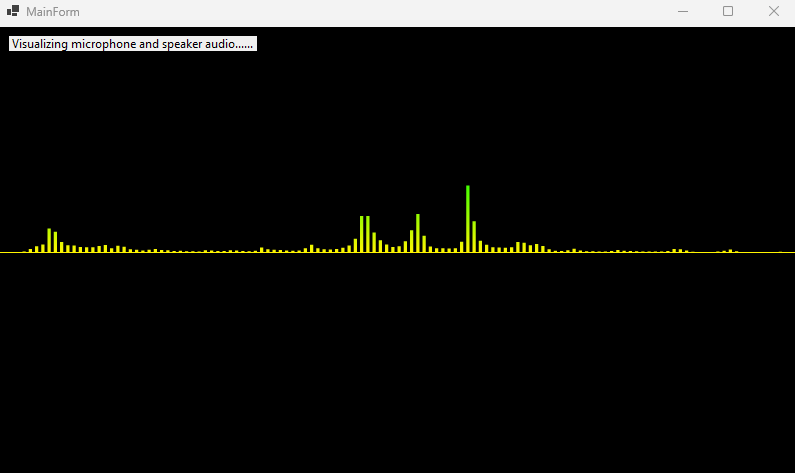
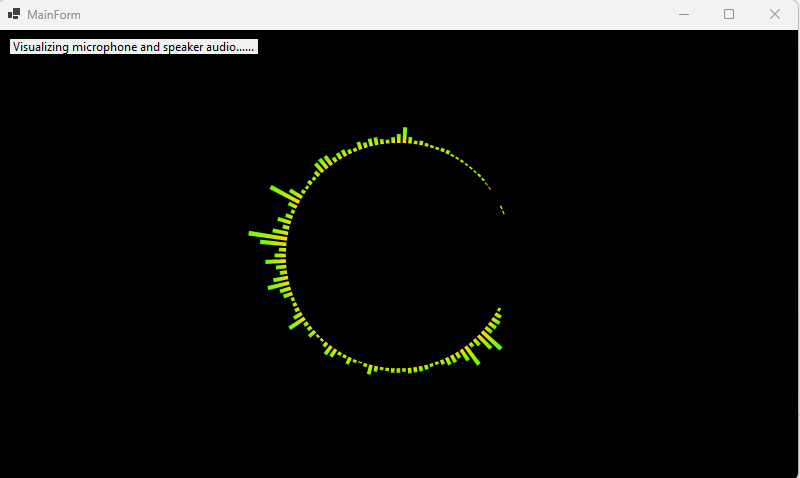
            audioVisualizer1.VisualEffect = VisualEffect.SpectrumBar;

            audioVisualizer1.Start();
            capture.StartRecording();
            speechWaveIn.StartRecording();
        }
License
Licensed under the MIT License.