SolutionErdXrmToolBoxPlugin 0.1.0.1
dotnet add package SolutionErdXrmToolBoxPlugin --version 0.1.0.1
NuGet\Install-Package SolutionErdXrmToolBoxPlugin -Version 0.1.0.1
<PackageReference Include="SolutionErdXrmToolBoxPlugin" Version="0.1.0.1" />
<PackageVersion Include="SolutionErdXrmToolBoxPlugin" Version="0.1.0.1" />
<PackageReference Include="SolutionErdXrmToolBoxPlugin" />
paket add SolutionErdXrmToolBoxPlugin --version 0.1.0.1
#r "nuget: SolutionErdXrmToolBoxPlugin, 0.1.0.1"
#:package SolutionErdXrmToolBoxPlugin@0.1.0.1
#addin nuget:?package=SolutionErdXrmToolBoxPlugin&version=0.1.0.1
#tool nuget:?package=SolutionErdXrmToolBoxPlugin&version=0.1.0.1
Solution ERD Builder
An XrmToolBox tool that draws entity relationship diagrams of the tables in a Dataverse solution and exports them to draw.io.
Alpha. It works, but it has only been tried on a handful of solutions. Please report problems and ugly diagrams in GitHub issues.
Why another ERD tool
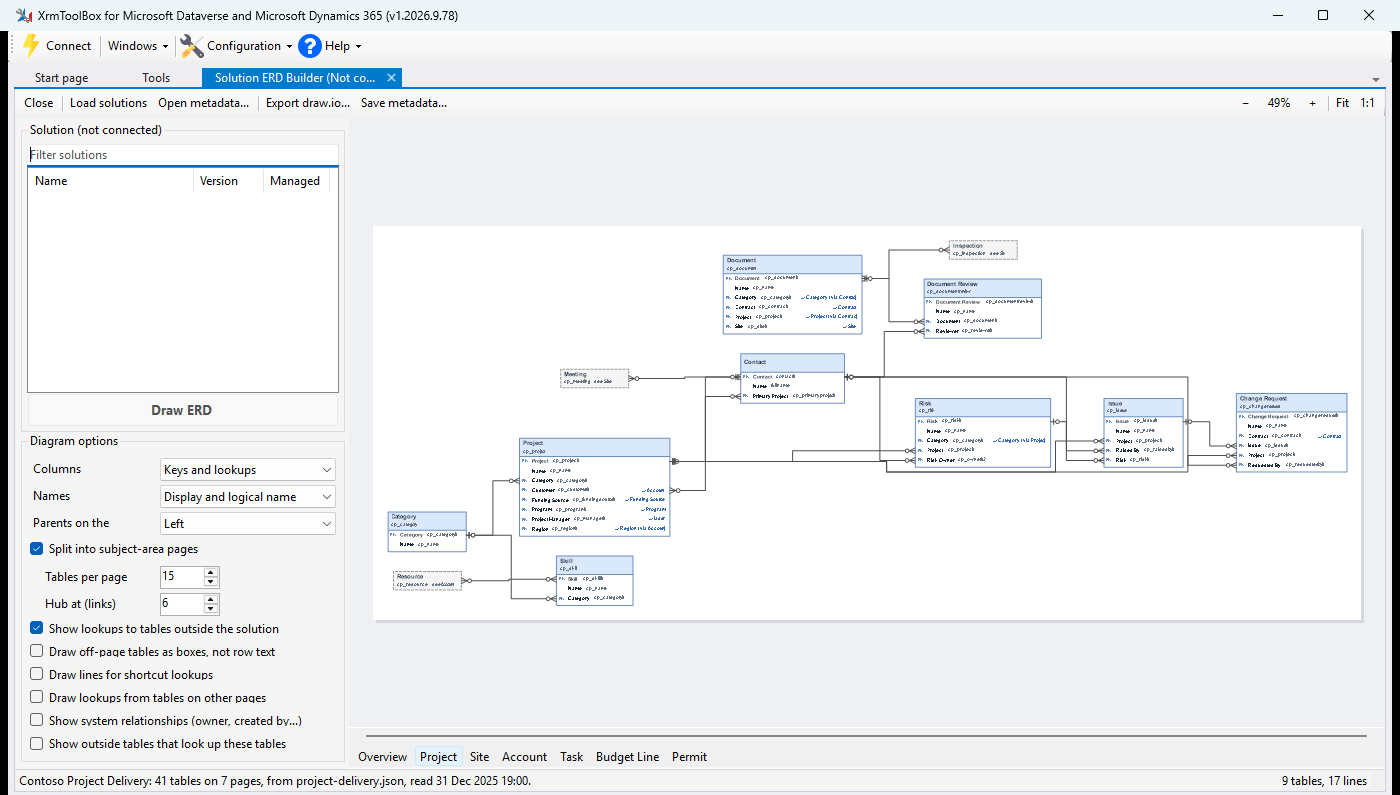
Most ERD tools draw every relationship of every table on one canvas, and the result is unreadable. This one is built around readability:
- System relationships are hidden by default: created by, modified by, owner, owning team or business unit, currency, process stage and similar.
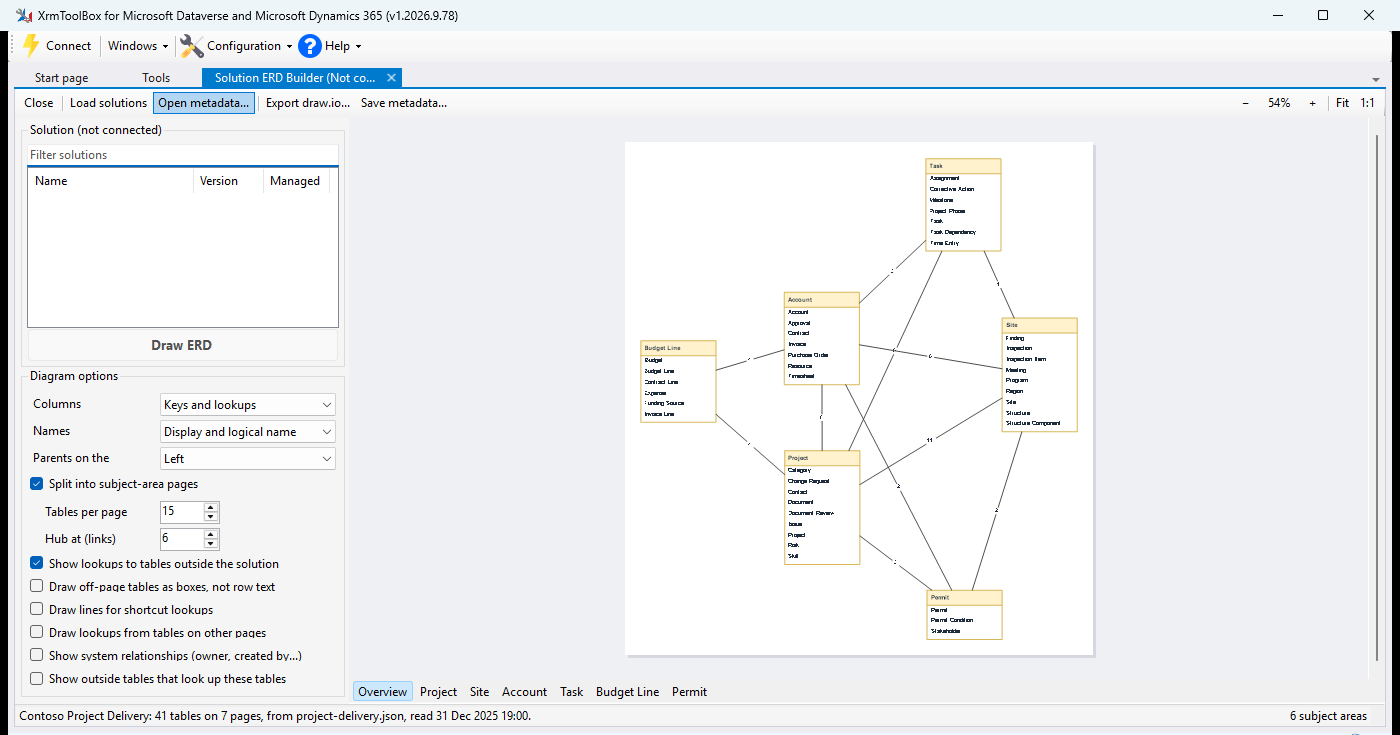
- Large solutions are split into subject-area pages of closely related tables. An overview page shows the areas and how many lookups run between each pair.
- Each line leaves from its lookup row and ends at the related table's key, with crow's-foot ends.
- Lookups to tables on other pages or outside the solution are row text ("→ Account") instead of extra boxes and long lines.
- Shortcut lookups are row text too. When a table already reaches a target through another lookup (Component → Structure → Project), its direct Project lookup reads "→ Project (via Structure)".
Nothing is dropped: every relationship is either a line or text on its lookup row, and options bring the lines back.
Using it
- Connect to an environment and open Solution ERD Builder.
- Pick a solution (Load solutions refreshes the list) and click Draw ERD, or double-click the solution.
- Move between pages with the tabs under the diagram. Zoom with Ctrl+mouse wheel or the toolbar, and drag to pan.
- Export draw.io... writes one
.drawiofile with a page per subject area. Open it in draw.io desktop or at app.diagrams.net. draw.io can save it as Visio (.vsdx) through File > Export as.
The tool only reads metadata: the solution list, the solution's table components and those tables' columns and relationships. It doesn't read or change any records.
Saved metadata
Save metadata... writes what the tool read to a JSON file, and Open metadata... draws from such a file without a connection. Use it to draw diagrams offline, or to send someone a solution's structure without giving them access to the environment.
Options
| Option | Default | What it does |
|---|---|---|
| Columns | Keys and lookups | Which rows each table shows: keys and lookups, plus custom columns, or all columns |
| Names | Display and logical name | Row and header text |
| Parents on the | Left | Where parent tables go relative to the tables that look them up |
| Split into subject-area pages | on | Off draws the whole solution on one page |
| Tables per page | 15 | Largest subject area before it is split again |
| Hub at (links) | 6 | A table with this many relationships is a hub: it gets one home page and is referred to by name elsewhere |
| Show lookups to tables outside the solution | on | Row text for lookups to tables that aren't in the solution |
| Draw off-page tables as boxes, not row text | off | Small boxes and lines for tables on other pages or outside the solution |
| Draw lines for shortcut lookups | off | Lines for lookups that are shown as "(via ...)" text |
| Draw lookups from tables on other pages | off | Also draw lookups into this page from other pages |
| Show system relationships | off | Owner, created by, modified by and similar |
| Show outside tables that look up these tables | off | Tables outside the solution that point at its tables |
Keyboard
| Keys | Action |
|---|---|
| Ctrl+PageDown / Ctrl+PageUp | Next / previous page |
| Ctrl+plus / Ctrl+minus | Zoom in / out |
| Ctrl+0 | Fit the page |
| Ctrl+1 | Actual size |
Status
| Part | State |
|---|---|
| Solution picker, preview, page tabs, zoom | working |
| draw.io export | working |
| Saved metadata files | working |
| Layout | working; tuned on synthetic and a few real solutions (see the experiment log) |
Direct Visio (.vsdx) export |
planned |
Installation
From the XrmToolBox Tool Library
Search for Solution ERD Builder in the Tool Library once it is listed.
Manual installation
- Build:
.\build.ps1 - Deploy to XrmToolBox:
.\deploy.ps1 -Force
Repository layout
| Path | Contents |
|---|---|
src/SolutionErd.Core |
metadata snapshot model, noise filter, page clustering, layout, preview renderer, writers. No XrmToolBox references. |
src/SolutionErdXrmToolBoxPlugin |
the XrmToolBox tool: reads metadata over the connection, shows a preview, exports |
src/SolutionErd.Cli |
developer tool: renders a saved metadata file to .drawio and PNG, and prints layout metrics |
tests/SolutionErd.Tests |
unit and layout tests |
fixtures/synthetic |
made-up metadata files used by the tests |
docs/experiments |
layout experiment log |
Building from source
git clone https://github.com/HurleySk/xrmtoolbox-erd.git
cd xrmtoolbox-erd
dotnet build SolutionErd.sln --configuration Release
dotnet test SolutionErd.sln --configuration Release
Rendering a metadata file without XrmToolBox
The CLI renders a saved metadata file the same way the tool does, and prints layout metrics:
src\SolutionErd.Cli\bin\Release\net48\solution-erd.exe render fixtures\synthetic\project-delivery.json out
Testing in XrmToolBox
.\deploy.ps1 -Force(closes XrmToolBox if it is running, builds, deploys and relaunches)- If the tool doesn't appear, delete
%APPDATA%\MscrmTools\XrmToolBox\Plugins\manifest.jsonand restart XrmToolBox.
Releasing
Set the version in src/SolutionErdXrmToolBoxPlugin/SolutionErdXrmToolBoxPlugin.csproj and Properties/AssemblyInfo.cs (four parts, last part not zero), update PackageReleaseNotes, push, then push a tag v<version>. The Release workflow builds, tests, checks the versions and the package layout, publishes to nuget.org with trusted publishing and creates a GitHub release. A version already on nuget.org (uploaded by hand, say) is not pushed again; the workflow only creates the release. Run it by hand with "dry run" to check a build without publishing.
The plugin DLL goes in Plugins/; SolutionErd.Core.dll and AutomaticGraphLayout.dll go in Plugins/Dependencies/.
License
MIT License - see LICENSE for details.
Author
Samuel Hurley - HurleySk
Built on XrmToolBox by Tanguy Touzard. Layout uses MSAGL.
Learn more about Target Frameworks and .NET Standard.
-
.NETFramework 4.8
- Microsoft.CrmSdk.CoreAssemblies (>= 9.0.2.59)
- Microsoft.CrmSdk.Deployment (>= 9.0.2.34)
- Microsoft.CrmSdk.XrmTooling.CoreAssembly (>= 9.1.1.65)
- MscrmTools.Xrm.Connection (>= 1.2025.7.63)
- System.Resources.Extensions (>= 4.7.1)
- XrmToolBoxPackage (>= 1.2025.7.71)
NuGet packages
This package is not used by any NuGet packages.
GitHub repositories
This package is not used by any popular GitHub repositories.
| Version | Downloads | Last Updated |
|---|---|---|
| 0.1.0.1 | 111 | 10/15/2026 |
First alpha. Pick a solution, preview its ERD page by page (an overview of subject areas, then one page per area) and export to draw.io. System relationships are hidden, and lookups to tables on other pages or outside the solution are shown as row text instead of lines. Metadata can be saved to a file and opened later without a connection. Visio export is not in this version.