IVSoftware.GlyphProvider.WinForms
1.1.0
Prefix Reserved
dotnet add package IVSoftware.GlyphProvider.WinForms --version 1.1.0
NuGet\Install-Package IVSoftware.GlyphProvider.WinForms -Version 1.1.0
<PackageReference Include="IVSoftware.GlyphProvider.WinForms" Version="1.1.0" />
<PackageVersion Include="IVSoftware.GlyphProvider.WinForms" Version="1.1.0" />
<PackageReference Include="IVSoftware.GlyphProvider.WinForms" />
paket add IVSoftware.GlyphProvider.WinForms --version 1.1.0
#r "nuget: IVSoftware.GlyphProvider.WinForms, 1.1.0"
#:package IVSoftware.GlyphProvider.WinForms@1.1.0
#addin nuget:?package=IVSoftware.GlyphProvider.WinForms&version=1.1.0
#tool nuget:?package=IVSoftware.GlyphProvider.WinForms&version=1.1.0

IVSoftware.GlyphProvider.Portable [GitHub]
This micro utility (<100 KB) works with custom Fontello webfont packages whether they contain a few glyphs or dozens. Each archive downloaded from Fontello comes with a config.json file that catalogs its glyph icons. The GlyphProvider class can deserialize this fully, representing each entry as a Glyph object. Deserializing the config isn't going to solve any great mystery on its own, but it does provide a solid foundation for a handful of small, practical improvements that end up earning their keep.
Quick Start - icon-basics.ttf

This package includes a small ready-made Fontello subset font. Its job is simply to give the examples something concrete to point at, though you're welcome to use it directly - it carries the same license as any Fontello font.
If you're new to Fontello, it helps to know that
config.jsonworks both ways. You can upload/import it to the Fontello site to kick-start a renamed font or to iterate on one you already have.
Features At A Glance
The improvements in this package are made possible by one small gesture: assigning the Build Action property of your config.json file or files as Embedded Resource. It follows that:
- The font configurations become discoverable and will load on demand at runtime.
- Deserialization is only the beginning. Fontello represents glyphs as a list, but this utility organizes all such lists into a single dictionary so that the lookups become direct and share the same fast access path.
- As a one-time setup in temporary code, the
CreateEnumPrototypes()method producesenumdefinitions you can paste into your project. After recompiling, each font exposes a standard enum that indexes cleanly into the dictionary, usable in code-behind or directly in XAML with intellisense.
Once defined, enum members are used to call the ToGlyph() extension with an optional GlyphFormat argument. Before this takes on any hint of magic, let's take a look at a representative member of the generated enum. Here, the [CssName] attribute maps the canonical keys in the config.json itself. This means you can change IconBasics to some other name, change EllipsisHorizontal to some other name, and it's still going to work.
[CssName("icon-basics")]
public enum IconBasics
{
    [CssName("ellipsis-horizontal")]
    EllipsisHorizontal
}
To put a finer point on it, the glyph is indexed by the enum member, and the enum type carries the font family information as well. Together, they describe the glyph fully: family + name.
Next, a few examples to show the various ways this can be useful.
Using Named Enums
This package includes an enum named GlyphProvider.IconBasics to introduce the idea.
- First, we'll look at how this makes it easy to access the font glyphs.
- Then, in the section below, we'll walk through how to generate your own enum definitions using
GlyphProvider.CreateEnumPrototypes().
1. Maui Button in Code Behind
In C# code, call the extension directly on the enum value.
Microsoft.Maui.Controls.Button button = new()
{
    HeightRequest = 50,
    WidthRequest = 50,
    BorderColor = Color.FromArgb("#444444"),
    Margin = new Thickness(1),
    Padding = 0,
    FontSize = 18,
    FontFamily = "icon-basics",
    Text = GlyphProvider.IconBasics.Edit.ToGlyph(),
};
2. List Button Glyphs for use in XAML
This loop shows each enum value rendered with the GlyphFormat.Xaml option.
var icons = Enum.GetValues<GlyphProvider.IconBasics>();
foreach (var icon in icons)
{
    Debug.WriteLine($"{icon.ToString().PadRight(20)}{icon.ToGlyph(GlyphFormat.Xaml)}");
}
Output from Debug
Add                 
Delete              
Edit                
EllipsisHorizontal  
EllipsisVertical    
Filter              
Menu                
Search              
Settings            
Checked             
Unchecked           
Shown               
Hidden              
HelpCircled         
HelpCircledAlt      
DocEmpty            
Doc                 
DocNew              
ParentPinCollapsed  
ParentPinExpanded   
ChildPinCollapsed   
ChildPinExpanded    
Practically speaking, a standard-issue Maui Button can display a glyph if two things are in place:
- The font family (
FontFamily="icon-basics") is specified. - The escape sequence (
Text="") is set.
Inspecting the return value in a debugger will get you the right escaped code quickly enough, but it's still a bit clumsy. A cleaner approach is to make a small Button subclass (the same idea works in WinForms and WPF) that understands the enum and configures itself automatically.
3. Button with Bound Glyph Property

Making a lightweight subclass eliminates both of those steps: it takes an enum value, sets the correct font family, and builds the final Text for you. The result is a Button you can bind directly from XAML without any serious contemplation of escape codes at all.
public class GlyphButton : Button
{
    public static readonly BindableProperty StdIconNameProperty =
        BindableProperty.Create(
            nameof(OPID),
            typeof(Enum),
            typeof(GlyphButton),
            default(Enum),
            propertyChanged: OnStdIconChanged);

    public Enum? OPID
    {
        get => (Enum?)GetValue(StdIconNameProperty);
        set => SetValue(StdIconNameProperty, value);
    }

    static void OnStdIconChanged(BindableObject bindable, object oldValue, object newValue)
    {
        if (newValue is Enum icon)
        {
            var button = (GlyphButton)bindable;
            button.FontFamily = icon.ToCssFontName();
            button.Text = icon.ToGlyph();
        }
    }
}
Simple Combination of Glyph + Text

    static void OnStdIconChanged(BindableObject bindable, object oldValue, object newValue)
    {
        if (newValue is Enum icon)
        {
            var button = (GlyphButton)bindable;
            button.FontFamily = icon.ToCssFontName();

            // Use the Text binding to heuristically combine
            // glyph + text without having to subclass Button.
            if (button.Text.TryUpdateIconicText(icon, out var textFTR, spacing: 4))
            {
                if (button.BindingContext?.GetType().GetProperty(nameof(Text)) is { } pi)
                {
                    // If a binding exists, don't break it - use it.
                    pi.SetValue(button.BindingContext, textFTR);
                }
                else
                {
                    button.Text = textFTR;
                }
            }
        }
    }
XAML
What started out as a cryptic Text="" is now an IntelliSense-backed reference to a static Enum value.
<local:GlyphButton
    x:Name="CounterBtn"
    Text="Click me"
    OPID="{x:Static gp:IconBasics.HelpCircledAlt}"
    SemanticProperties.Hint="Counts the number of times you click"
    Clicked="OnCounterClicked"
    HorizontalOptions="Fill"
    Padding="0"
    FontSize="18"/>
Font (.ttf) Files at the Platform Level
The Fontello archive also contains the .ttf font file itself, and platforms have varying requirements for importing it (see table below). Nothing in the preceding sections interacts with the .ttf file directly. But of course, none of this is actually going to work unless the font family is imported in the first place.
This guide walks through those prerequisites in each platform section. For now, there is one shared setup step: making sure the font files are present in your project in the right location.
To prepare for the next section, either copy the icon-basics folder using the instructions below, or download your own your-icons.zip from the Fontello website and extract it.
How To Copy
- In your project, create the
Resources\Fontsdirectory if it does not already exist. Locate and open the content folder inside the NuGet package, and copy the entire icon-basics folder intoResources\Fonts.
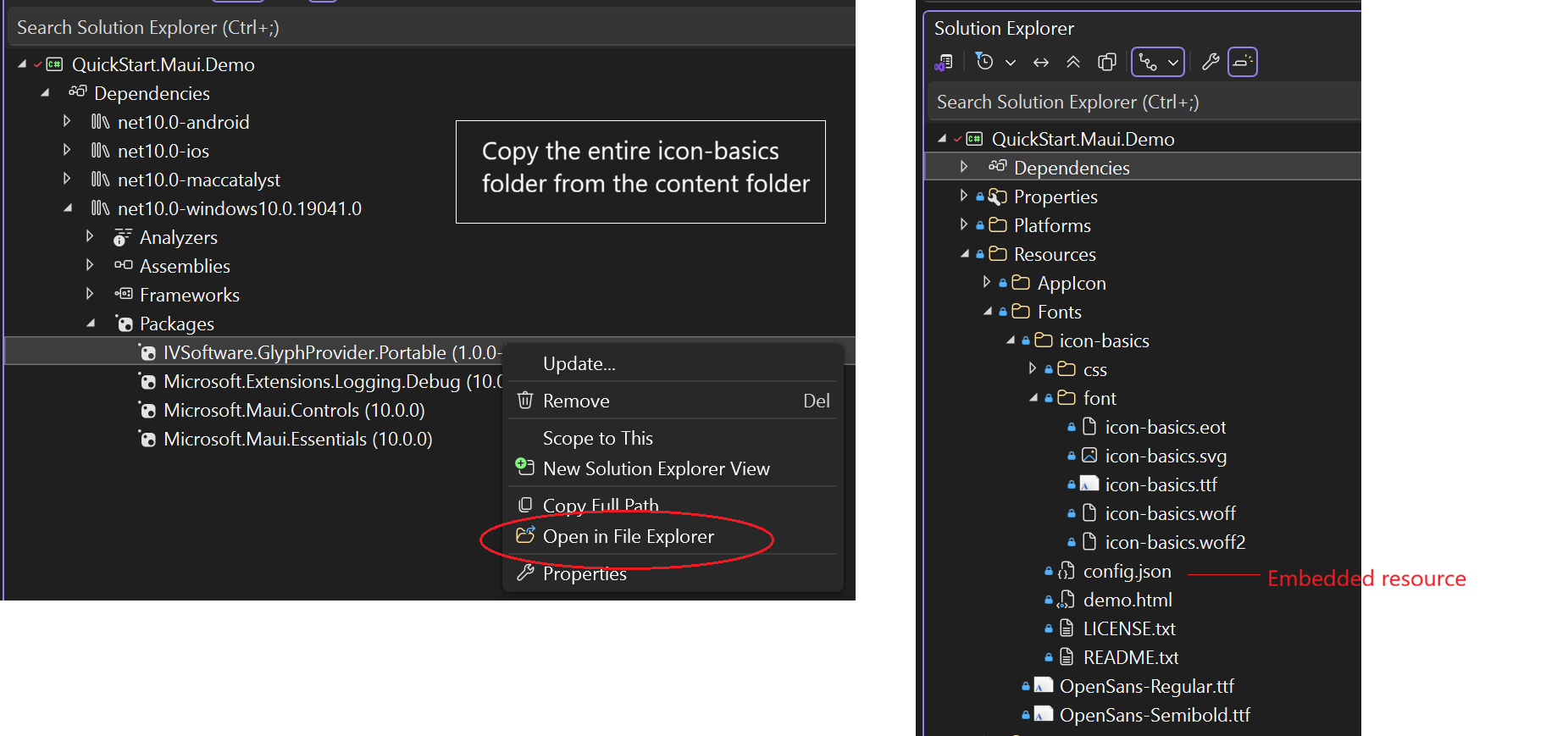
Open the properties of
config.jsonand set its Build Action to Embedded Resource. (Even in WPF this should be Embedded Resource, not Resource.)Open the properties of
icon-basics.ttfand set its Build Action to:- MauiFont for .NET MAUI
- Resource for WPF
(Remember thatconfig.jsonis different. It remains an embedded resource.) - EmbeddedResource for WinForms
WinForms note: Importing a font family requires loading it through
System.Drawing.PrivateFontCollection. The repo shows exactly how to do this. Even better: the WinForms specificIVSoftware.GlyphProvider.WinFormsNuGet does it for you.
These requirements are summarized in the table below:
| Platform | Build Action | Notes |
|---|---|---|
| MAUI | MauiFont |
In MauiProgram.cs, make an AddFont entry in the ConfigureFonts block following the pattern shown e.g. for OpenSans. |
| WinForms | EmbeddedResource |
Use the platform-specific NuGet IVSoftware.GlyphProvider.WinForms, which implements the required System.Drawing.PrivateFontCollection for custom fonts. |
| WPF | Resource |
XAML can reference FontFamily with pack://application:,,,/#YourFont syntax, or do it in code-behind as shown in the full example below. |
Boosting the Cache
This platform-agnostic snippet represents a canonical flow for any client - there are no platform differences as far as this utility is concerned. Left to its own devices, the cache initializes its mapping functions on the first access, but there might be a few ms of latency (just enough to make the all-important first impression a tad sluggish). To avoid this, warm up the cache using the async method shown below (there is no need to await it).
public partial class MainUI
{
    public MainUI()
    {
        InitializeComponent();
        _ = InitAsync();
    }

    private async Task InitAsync()
    {
        // Reduce the lazy "first time click" latency.
        await GlyphProvider.BoostCache();
    }
}
Platform Quick Starts
These samples show just a few lines of code and employ the built-in GlyphProvider.IconBasics enum to address the idiosyncrasies of the main platforms.
MAUI Quick Start - Making sure to import the font in MauiProgram.cs
WinForms Quick Start - Using the platform-specific NuGet to abstract System.Drawing.PrivateFontCollection.
WPF Quick Start - How to succeed using the pack syntax in code-behind.
Generating Named Enums
Now let's expand our repertoire by downloading a new icon-media-control.zip archive from Fontello. After extracting it, place the resulting folder next to icon-basics inside Resources\Fonts. Remember to set the Build Action of the new config.json to Embedded Resource - same as before. Importing the .ttf file follows the same conventions you used for icon-basics.ttf.
As a one-time setup, we need to run GlyphProvider.CreateEnumPrototypes(), which discovers all config.json files marked as embedded resources scoped to AppDomain.Current. It returns a string array where each element is an enum definition - one for each config. The snippet below joins them, and when enumsGen is shown in a text visualizer the entire block can be copy-pasted as actual code.
private async Task InitAsync()
{
    // Reduce the lazy "first time click" latency.
    await GlyphProvider.BoostCache();

#if DEBUG
    // Generate one enum definition per config.json discovered in the assembly.
    // Many apps have more than one font kit, and multiple bundles will produce multiple enums.
    string[] prototypes = await GlyphProvider.CreateEnumPrototypes();

    Debug.Assert(
        prototypes.Any(),
        "You should also see prototypes for any additional config.json files " +
		"that you've marked as Embedded Resource. (Note: in WPF, this must be " +
		"EmbeddedResource - not Resource - for discovery to work.)"
    );

    var enumsGen =
        string.Join(
            $"{Environment.NewLine}{Environment.NewLine}",
            prototypes);

	{ } // < Set a debug break HERE to copy the `enumsGen` from text visualizer to your code.
#endif
}
The block below shows a typical result as depicted by the visualizer. There will be one enum for each discovered configuration.
[CssName("icon-media-control")]
public enum StdIconMediaControl
{
	[CssName("stop")]
	Stop,

	[CssName("pause")]
	Pause,

	[CssName("to-end")]
	ToEnd,

	[CssName("to-end-alt")]
	ToEndAlt,

	[CssName("to-start")]
	ToStart,

	[CssName("to-start-alt")]
	ToStartAlt,

	[CssName("fast-fw")]
	FastFw,

	[CssName("fast-bw")]
	FastBw,

	[CssName("eject")]
	Eject,
}
After rebuild and restart, the new enum is fully wired in and ready to use with no additional setup. At this point, feel free to remove the temporary DEBUG section which has fulfilled its purpose.
Font Viewer Demo
This set of demos brings all the pieces together:
- Employs the same flow/flex layout scheme to display the font glyphs present in each
ttffile. - Features a combo box/picker to choose which discovered font to display.
- Handles Click/Clicked events for each button, popping up the individual json list item from the config file.
- On windows builds, displays mouse-hover styling and a tool tip with the friendly glyph name.
Using [Glyph] Attribute
In some designs, enum types serve a configuration role rather than directly identifying glyphs. In these cases, an enum member represents a command, action, or UI affordance, while the actual glyph comes from a different enum generated by the GlyphProvider.
Configurable Command Bar
This MAUI example shows a command bar that accepts a generic enum and turns each member into a button. The enum passed to Configure<T>() is not a glyph enum. Instead, each member must declare which glyph it maps to.
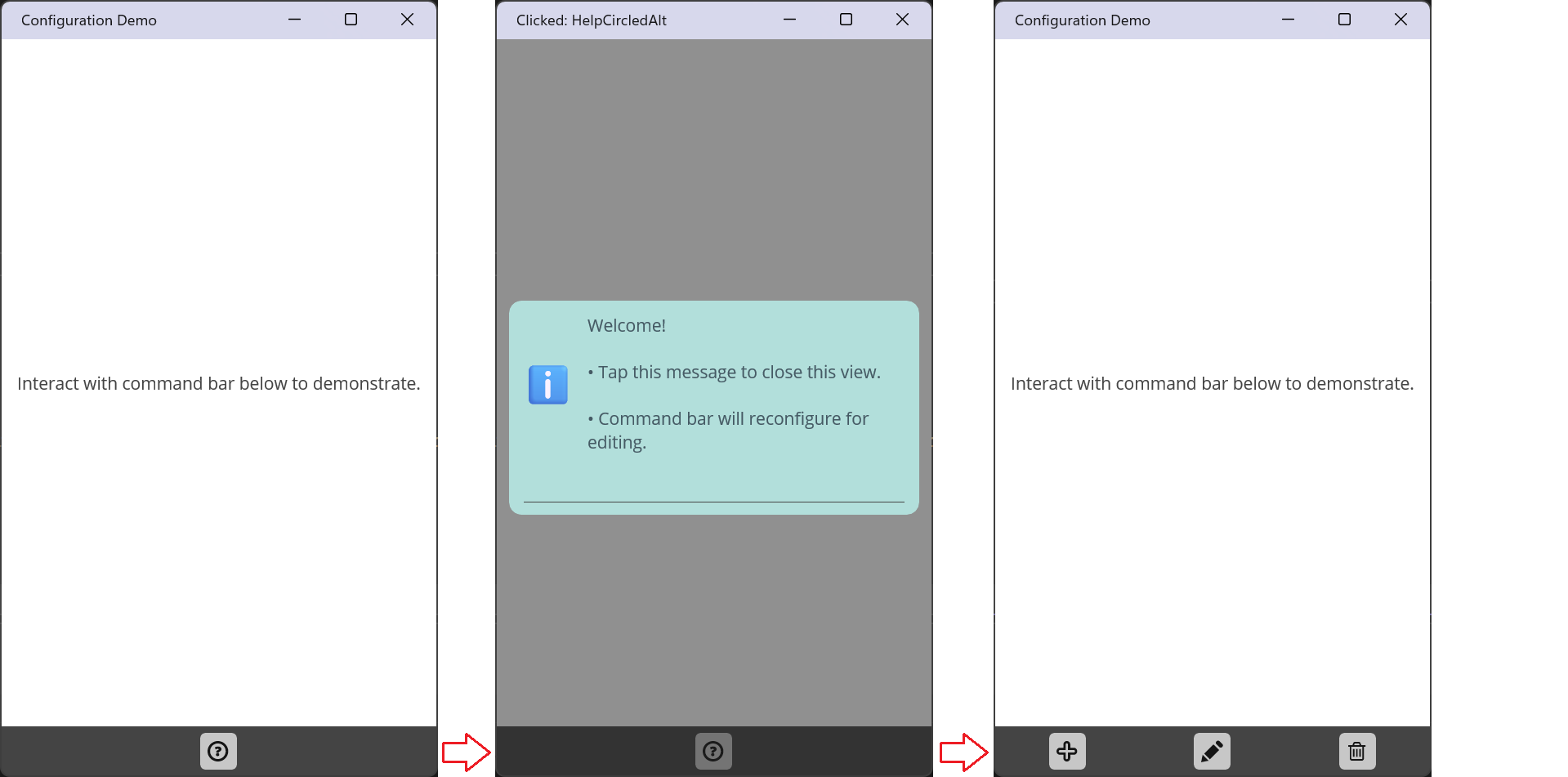
public void Configure<T>() where T : struct, Enum
{
    Grid.Children.Clear();

    var values = Enum.GetValues<T>();
    ColumnCount = values.Length;

    for (int i = 0; i < ColumnCount; i++)
    {
        var id = values[i];
        var button = new GlyphButton();

        if (id.GetCustomAttribute<GlyphAttribute>()?.StdEnum is { } icon)
        {
            button.OPID = icon;
        }
        else
        {
            this.ThrowHard<InvalidOperationException>(
                $@"Expecting member attribute e.g. [Glyph(typeof(IconBasics), ""Add"")]");
            return;
        }

        Grid.Add(button, column: i);
    }
}
To make this work, each configuration enum member must specify which glyph enum member it corresponds to. The [Glyph] attribute provides that glue.
public enum EditingCommands
{
    [Glyph(typeof(IconBasics), "Add")]
    Add,

    [Glyph(typeof(IconBasics), "Edit")]
    Edit,

    [Glyph(typeof(IconBasics), "Delete")]
    Delete,
}
Here, EditingCommands describes what the UI does, while IconBasics describes how it looks. The two concerns remain separate, but are connected explicitly and declaratively.
Format Explained
At first glance, the attribute syntax may look awkward. Why not something simpler?
public enum EditingCommands
{
     // Tempting, but illegal!
     // Attribute ctor arguments cannot accept Enum values generically.
    [Glyph(IconBasics.Add)]
    Add,
}
This runs into a CLR restriction: attribute constructor arguments must be compile-time constants of specific, known types. While enum values are allowed, the enum type itself must be known at compile time. It is not legal for an attribute constructor to accept Enum generically.
Because [Glyph] needs to work with any glyph enum, the constructor instead accepts {Type, MemberName}. At runtime, reflection resolves this pair back into the correct enum value and exposes it as a strongly typed <T> where T : struct, Enum.
The result is a small, explicit annotation that preserves type safety, avoids hard coupling, and keeps configuration enums and glyph enums cleanly separated.
| Product | Versions Compatible and additional computed target framework versions. |
|---|---|
| .NET | net8.0-windows7.0 is compatible. net9.0-windows was computed. net10.0-windows was computed. |
-
net8.0-windows7.0
- IVSoftware.GlyphProvider.Portable (>= 1.1.0)
- IVSoftware.Portable.Common (>= 1.0.1)
NuGet packages
This package is not used by any NuGet packages.
GitHub repositories
This package is not used by any popular GitHub repositories.
| Version | Downloads | Last Updated |
|---|---|---|
| 1.1.0 | 144 | 4/29/2026 |
1.1.0 stable update:
- Aligned with the decoupled GlyphProvider portable core.
- Verified WinForms demo compatibility against the current portable package behavior.
- Prepared as a stable companion package for the 1.1.0 Portable release.